Auto Swiper 4.0: a simpler popup, settings in a full tab, and clearer names
Auto Swiper 4.0 puts your status and one Start button first, moves every setting into a full tab, and uses the same clear names as the website and the Android app.
Auto Swiper 4.0 is the biggest update to the browser extension so far. We rebuilt the popup around the one thing you open it for — starting a session — moved every setting into a full browser tab, and renamed the settings so they say what they do. The extension, this website and the Android app now use the same words for the same things.
Nothing about your filters changes: they carry over exactly as you set them.
Start first, everything else second
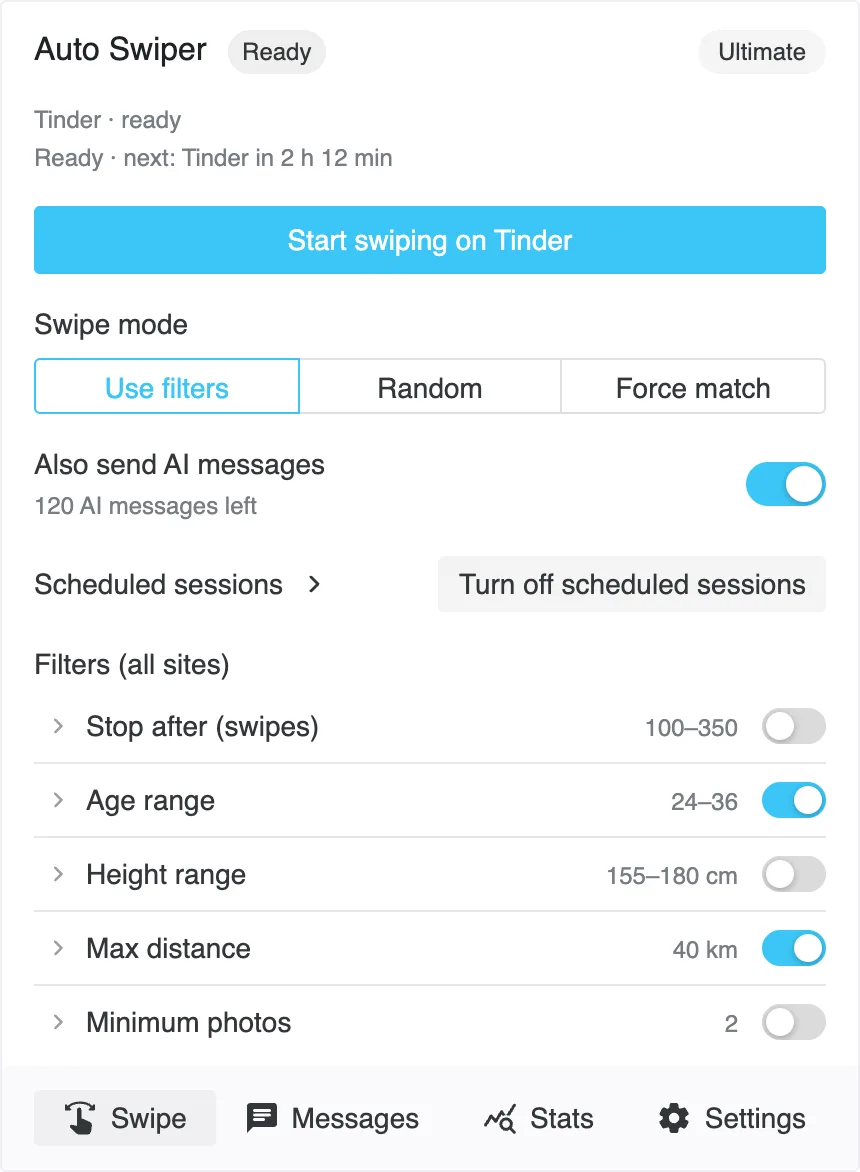
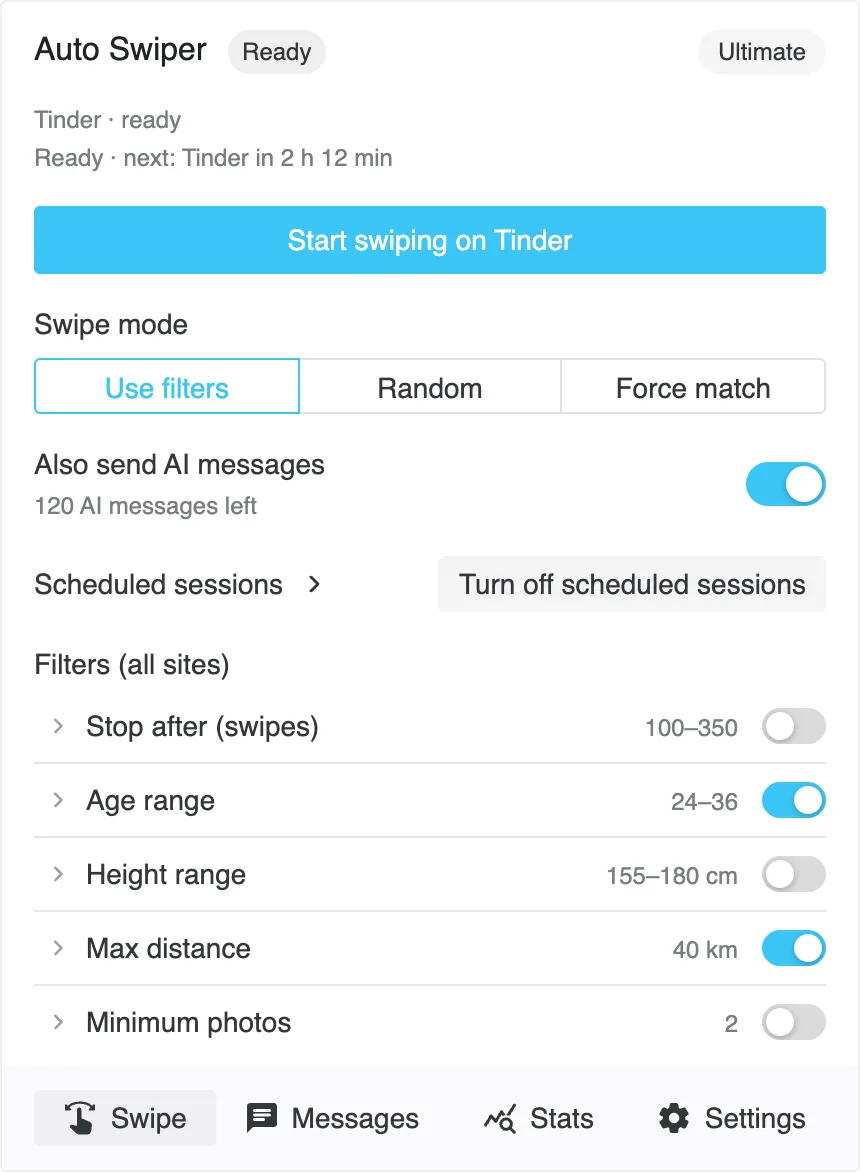
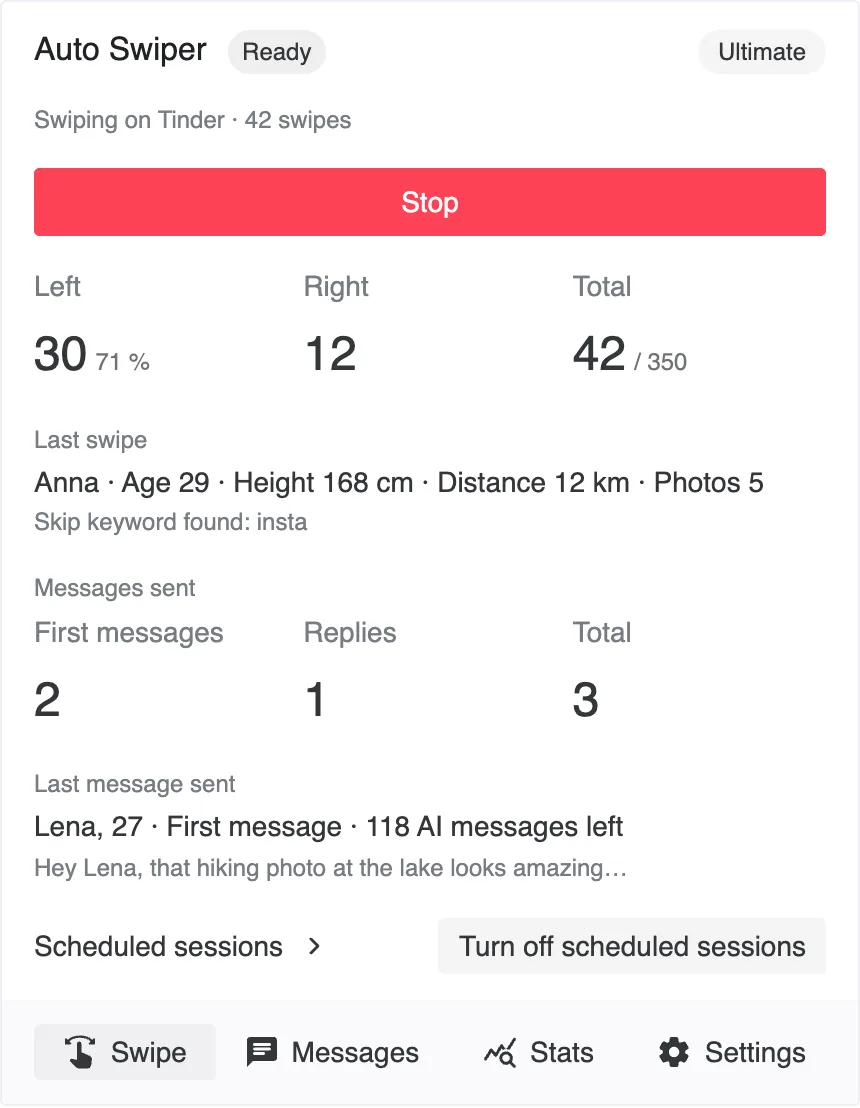
When you open the popup on a dating site, it now shows what Auto Swiper is doing and one big button: Start swiping on Tinder (or whichever site you're on). While a session runs, the same spot turns into a red Stop button, and the popup shows your likes, passes and the last profile live.
The popup also stays open when you press Start, so you can watch the first swipes happen.
Swipe mode: filters, Random or Force match
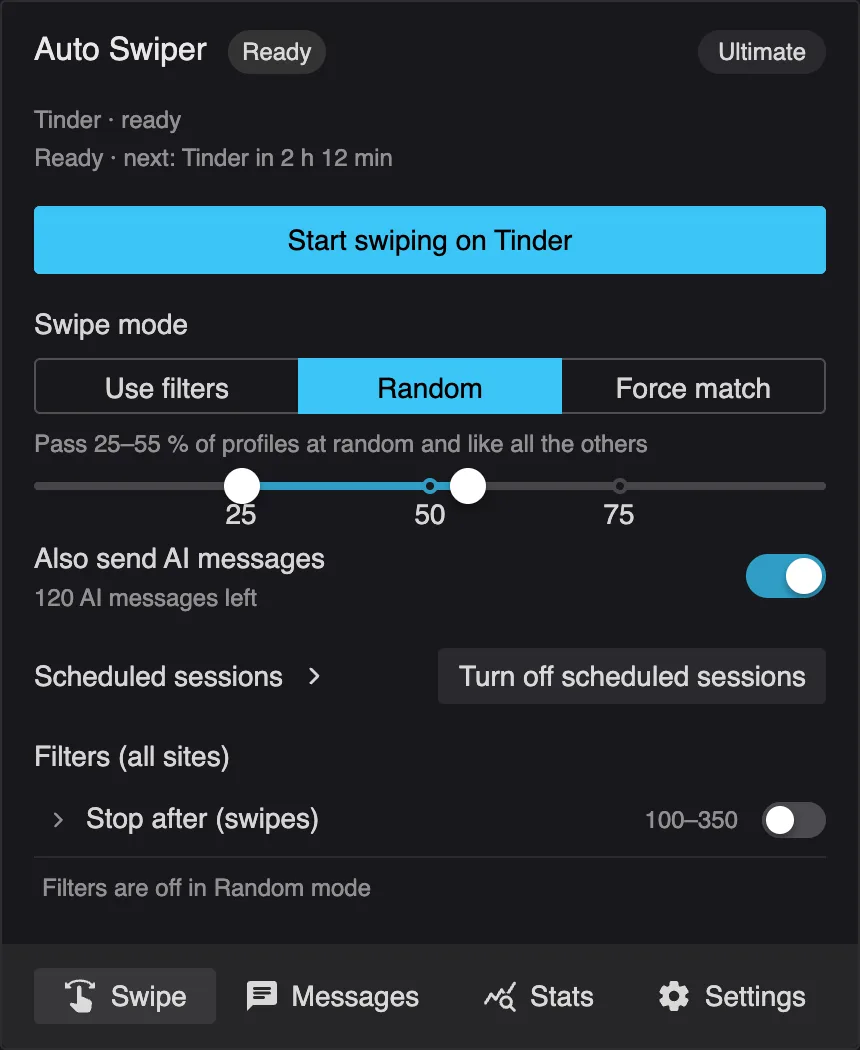
How Auto Swiper decides is now one clear choice at the top:
- Use filters — like the profiles that pass your filters.
- Random — pass a share of profiles at random and like all the others. Your filters are off in this mode, and the popup says so.
- Force match (Pro and Ultimate) — pass one, like one, reload the page, repeat.
Filters you can read at a glance
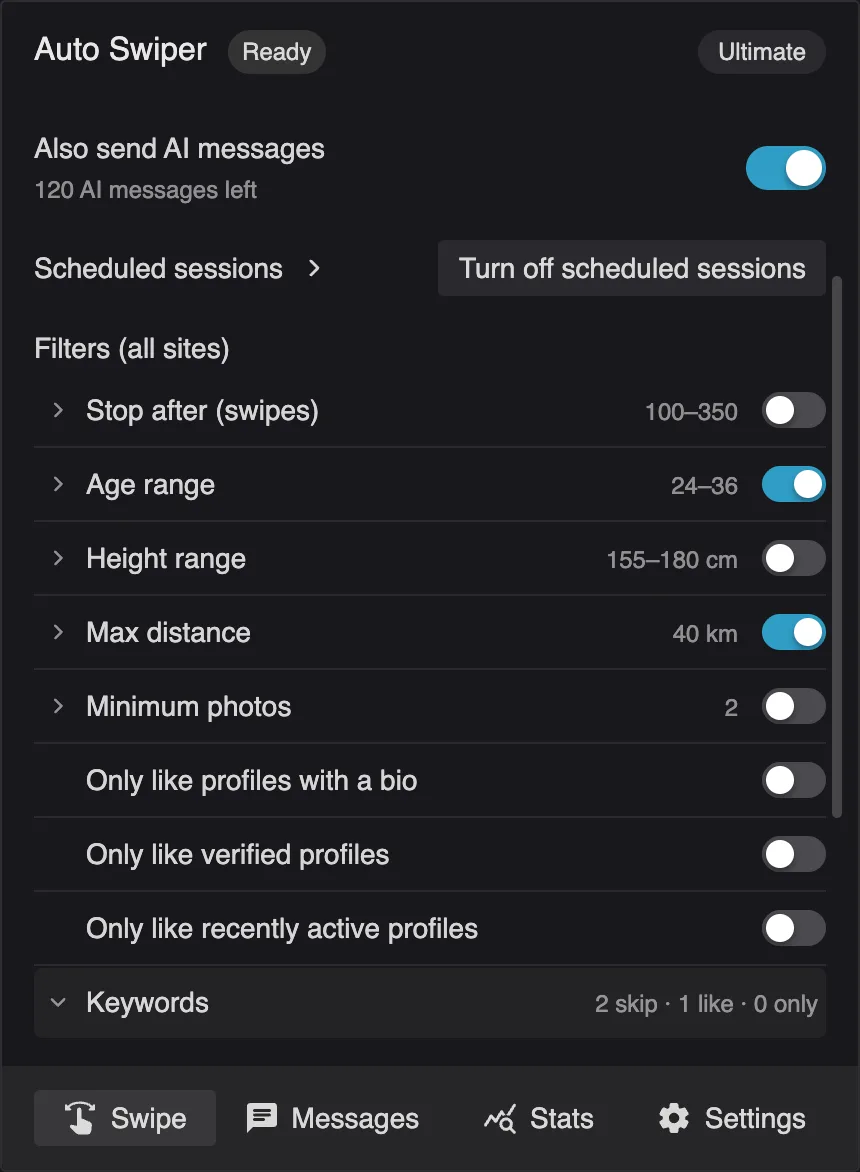
Each filter is now one row that shows its value — "Age range 24–36", "Max distance 40 km" — with a switch to turn it on or off. Click a row to open it and change the value.
Your filters apply on every site. If a site can't use one — minimum photos on PoF, for example — the row stays visible and says "Not used on PoF", instead of quietly disappearing.
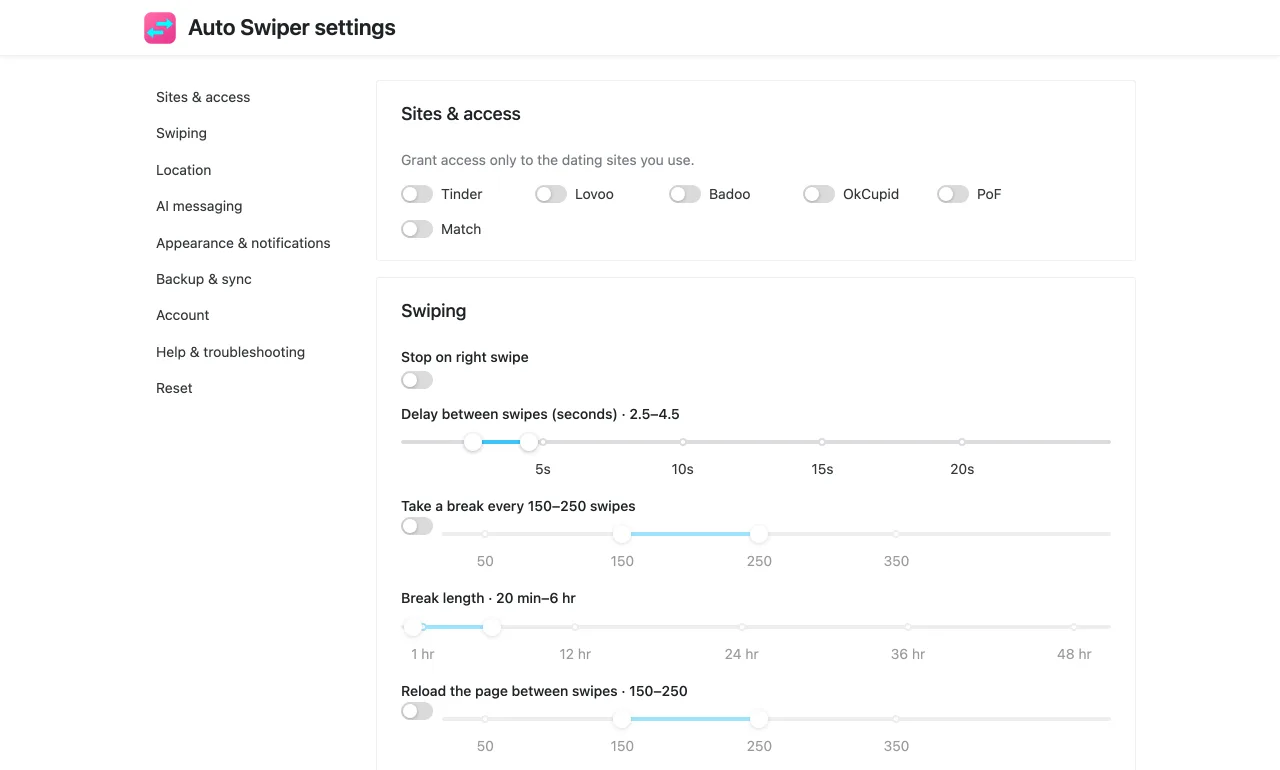
All settings in a full tab
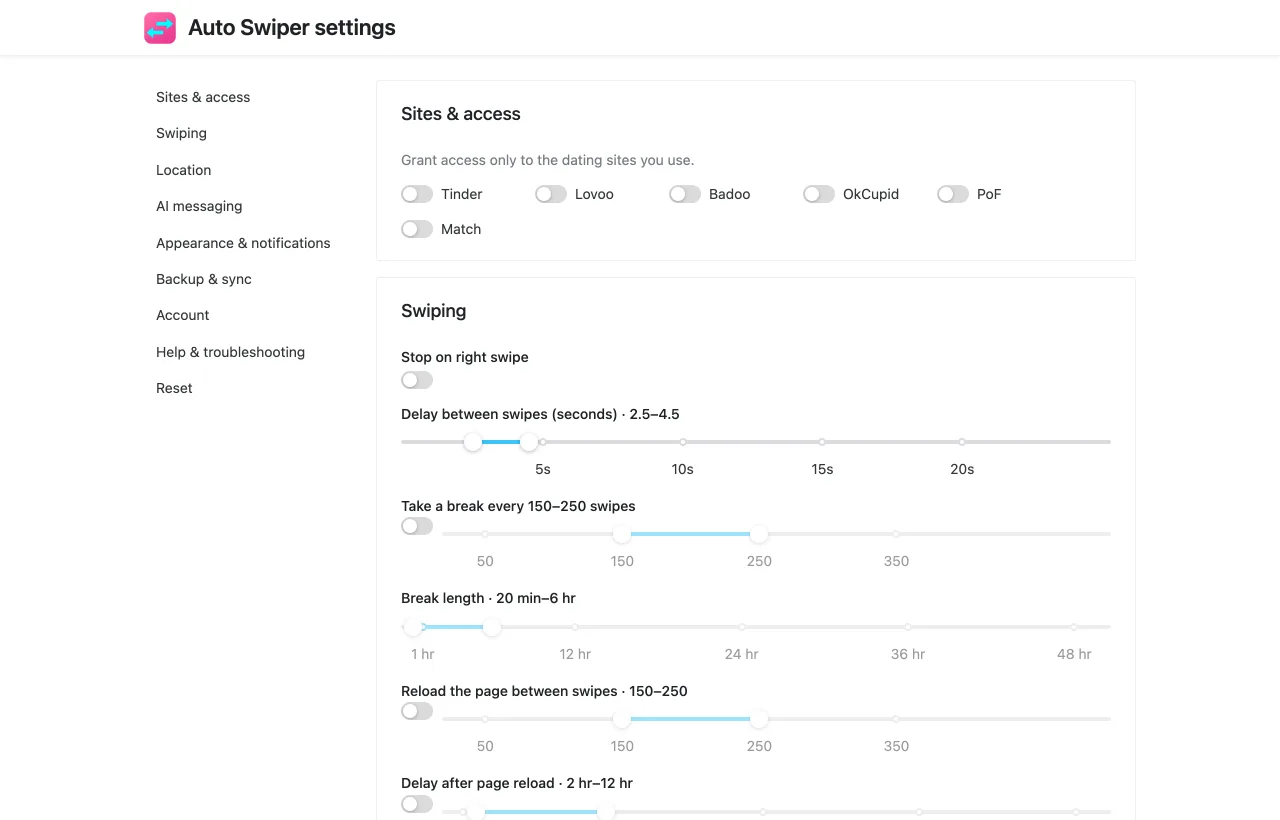
Everything that isn't needed while swiping moved to a settings page that opens in its own browser tab. Click Settings at the bottom of the popup.
It's organized into sections: Sites & access, Swiping, Location, AI messaging, Appearance & notifications, Backup & sync, Account, Help & troubleshooting, and Reset.
See your progress without opening the popup
The Auto Swiper icon in your browser toolbar now shows your swipe count while a session runs, a gray dot while scheduled sessions wait for their next run, and a red "!" when something needs your attention. Hover over it for the full status, like "Swiping on Tinder · 42 swipes".
Clearer names — the same everywhere
We renamed settings so they say what they do. You'll see the same names in the extension, on this website and in the Android app:
| Before | Now |
|---|---|
| Options | Settings |
| Subscription | Account |
| Left swipe percentage | Random mode |
| Max swipes | Stop after (swipes) |
| Banned keywords | Skip if profile mentions |
| Instant like keywords | Always like if profile mentions |
| Required keywords | Only like if profile mentions one of |
| Ignore unknown distance | Keep profiles that hide their distance |
| Min. pictures | Minimum photos |
| Simulate random usage | Browse photos before swiping |
| Cloud save / load | Back up to account / Restore from account |
| Session Mode | Scheduled sessions |
| Messaging credits | AI messages |
One behavior changed along with the name. Only like if profile mentions one of now matches when a profile mentions any one of your words. It used to require all of them in the Android app, which almost never happened. If you had several required words there, expect more likes than before.
Smaller things that add up
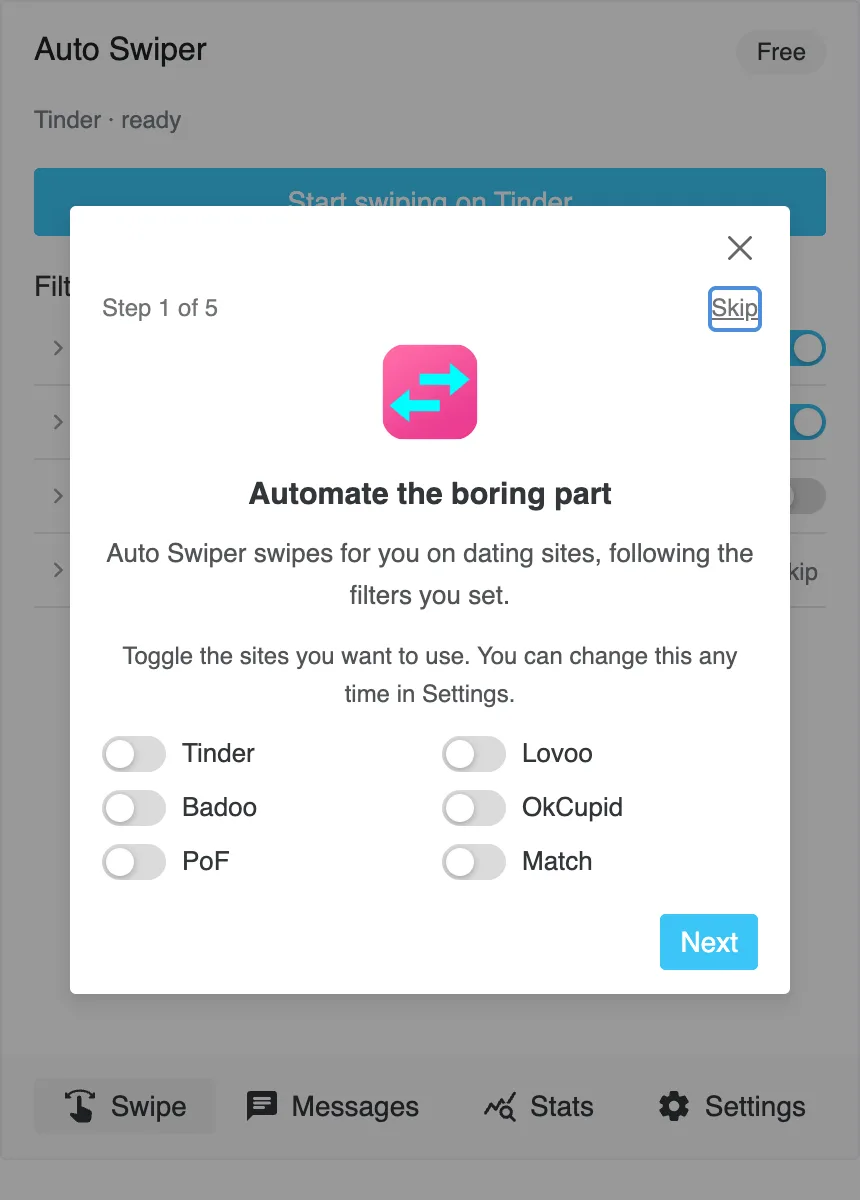
- A short guide walks you through the new layout the first time you open 4.0. You can show it again any time from Settings → Help & troubleshooting.
- A System theme follows your computer's light or dark mode.
- Colors mean something. Red is only for Stop and for deleting things.
- Deleting stats or logs, resetting settings and logging out now ask first.
- A lost connection no longer logs you out. If Auto Swiper can't reach our server, it keeps your plan and tries again later.
- Stats show your all-time likes and passes and which keywords matched most.
- AI messaging settings start with the main switch, then your AI message balance, then the details.
Where did it go?
- Theme, notifications, breaks, page reloads, location, backup, logs → Settings (the full tab).
- Login, plan and instance name → Settings → Account, or click your plan badge at the top of the popup.
- AI messaging → the Messages tab in the popup for the basics, Settings → AI messaging for everything else.
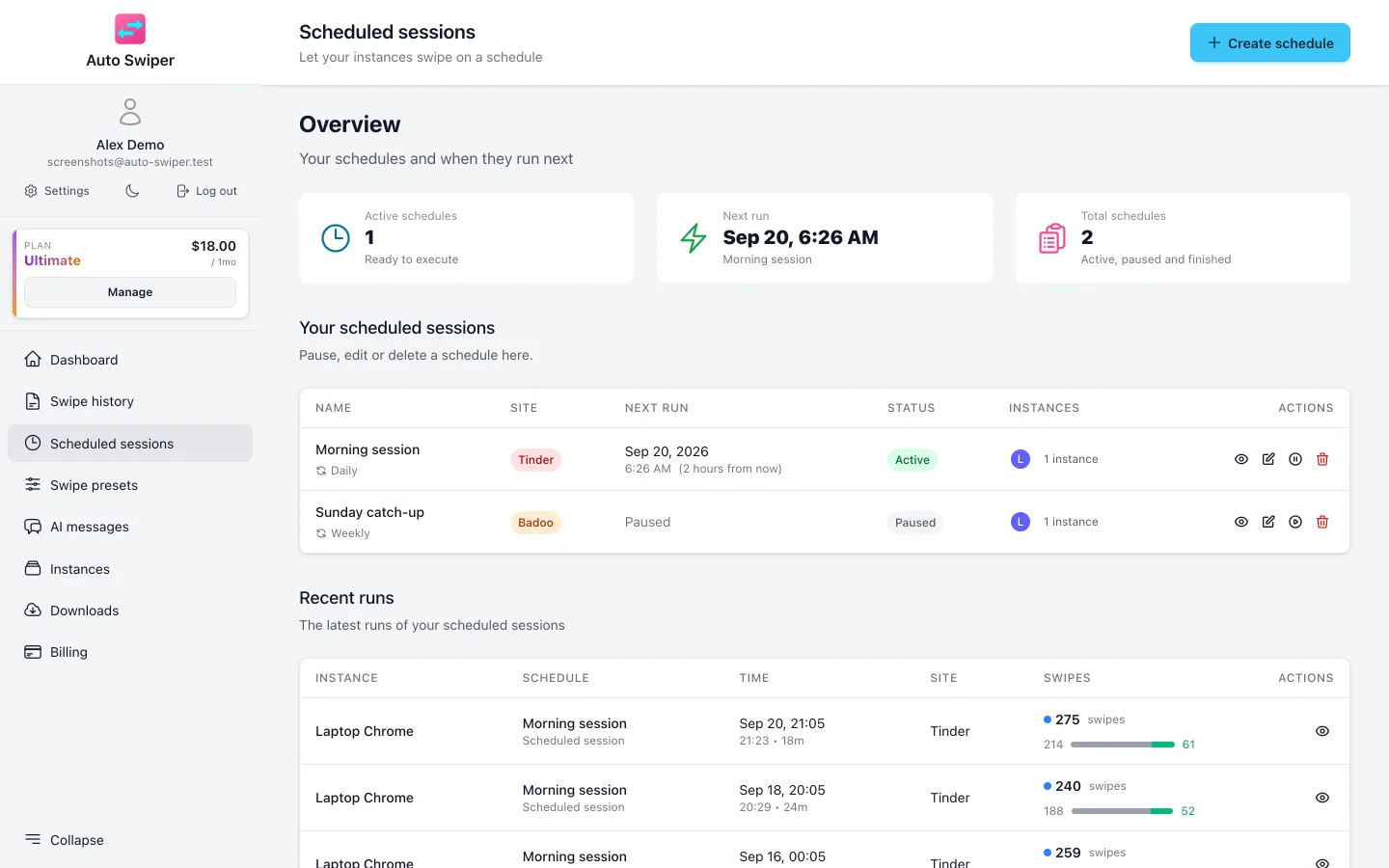
- Scheduled sessions → the Scheduled sessions row on the popup's home screen.
Getting it
Auto Swiper 4.0 is rolling out now in the Chrome Web Store and Firefox Add-ons. Your browser updates extensions on its own, usually within a day — there's nothing to reinstall.
New here? Start with getting started with the browser extension.
Questions, or something not where you expect it? Write to support@auto-swiper.ch, and have a look at how to report a bug first so we can help you faster.