Getting started with the Auto Swiper browser extension
From installing the extension to your first automated swipe on Tinder, Lovoo, Badoo, PoF, OkCupid or Match — the whole setup takes about five minutes.
Swiping is the boring part of online dating. You already know what you're looking for; you just have to tap through a few hundred profiles to find it. Auto Swiper does the tapping, applies the filters you set, and leaves you with the matches.
This guide takes you from a fresh install to your first automated session. It takes about five minutes, and you don't need a paid plan to try it.
What you need
- Chrome, Firefox, Edge, Brave, Vivaldi or Opera on a desktop or laptop.
- An account on the dating site you want to automate, already logged in.
- An Auto Swiper account, which you create during setup.
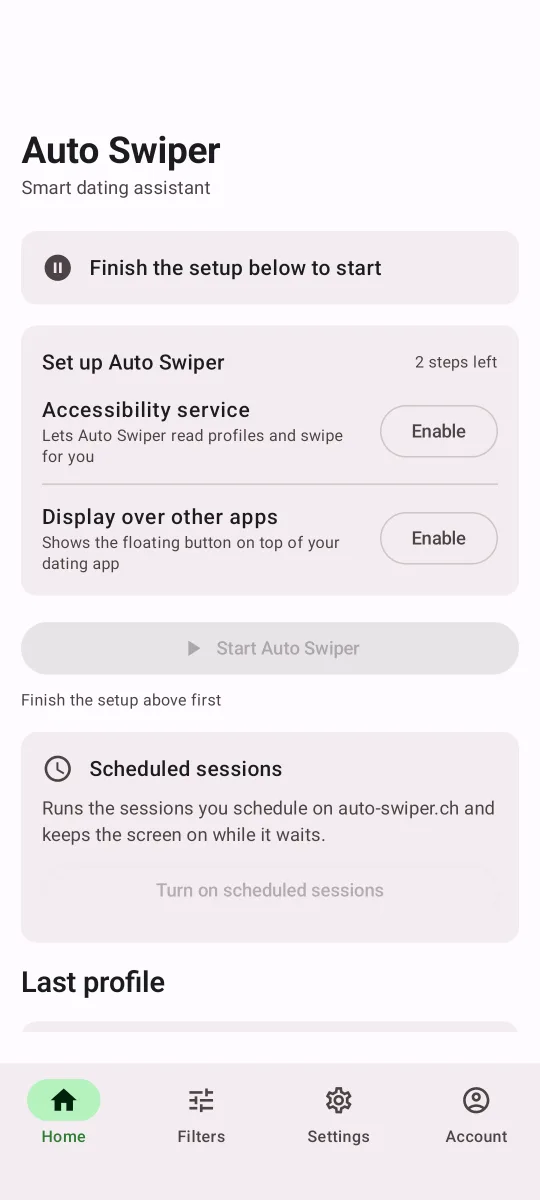
Auto Swiper works on six sites in the browser: Tinder, Lovoo, Badoo, Plenty of Fish, OkCupid and Match. Bumble and Hinge have no usable web version any more, so those two live in the Android app instead.
Step 1: Install the extension
Install Auto Swiper from the Chrome Web Store or Firefox Add-ons. Both listings are linked from the extension page. Edge, Brave, Vivaldi and Opera all install the Chrome version.
After installing, pin the Auto Swiper icon to your toolbar. You'll use it constantly, and from 4.0 onwards the icon doubles as a live status display — it shows your swipe count while a session runs.
Step 2: Choose your sites
The first time you open the popup, a short guide walks you through the layout. The first step is a grid of the six supported sites with a switch next to each.
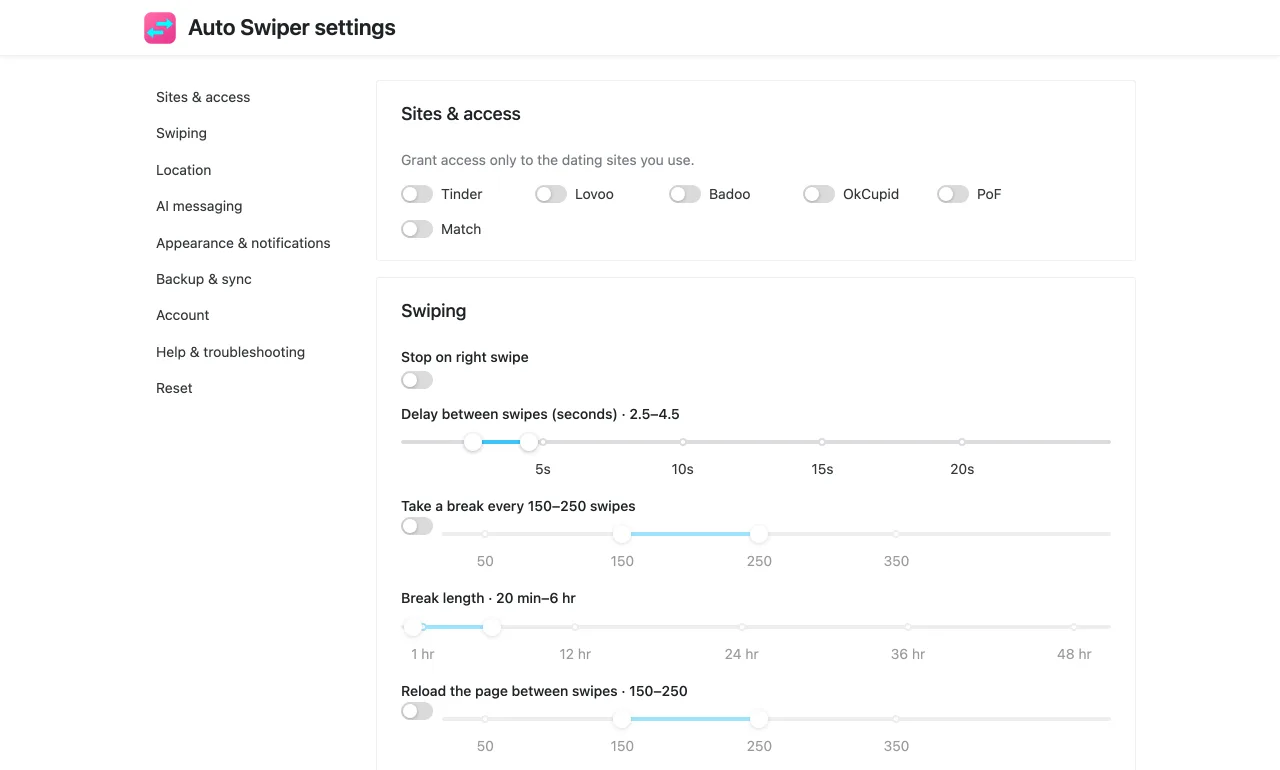
Turn on only the ones you actually use. Auto Swiper asks your browser for permission for those sites and nothing else — it never requests access to sites you didn't pick. You can add a site later from Settings → Sites & access, or simply press Start while you're on it and grant it then.
Step 3: Log in
Open Settings at the bottom of the popup, then Account. You can log in two ways:
- Email and password — the account you created on this website.
- An API token — generate one in the dashboard at
app.auto-swiper.chand paste it in. Useful if you run Auto Swiper on a machine you'd rather not type a password into.
Once you're signed in, the popup shows your plan at the top. The Free plan works right away, with a smaller keyword allowance and no swipe modes to choose between.
Step 4: Open a dating site and press Start
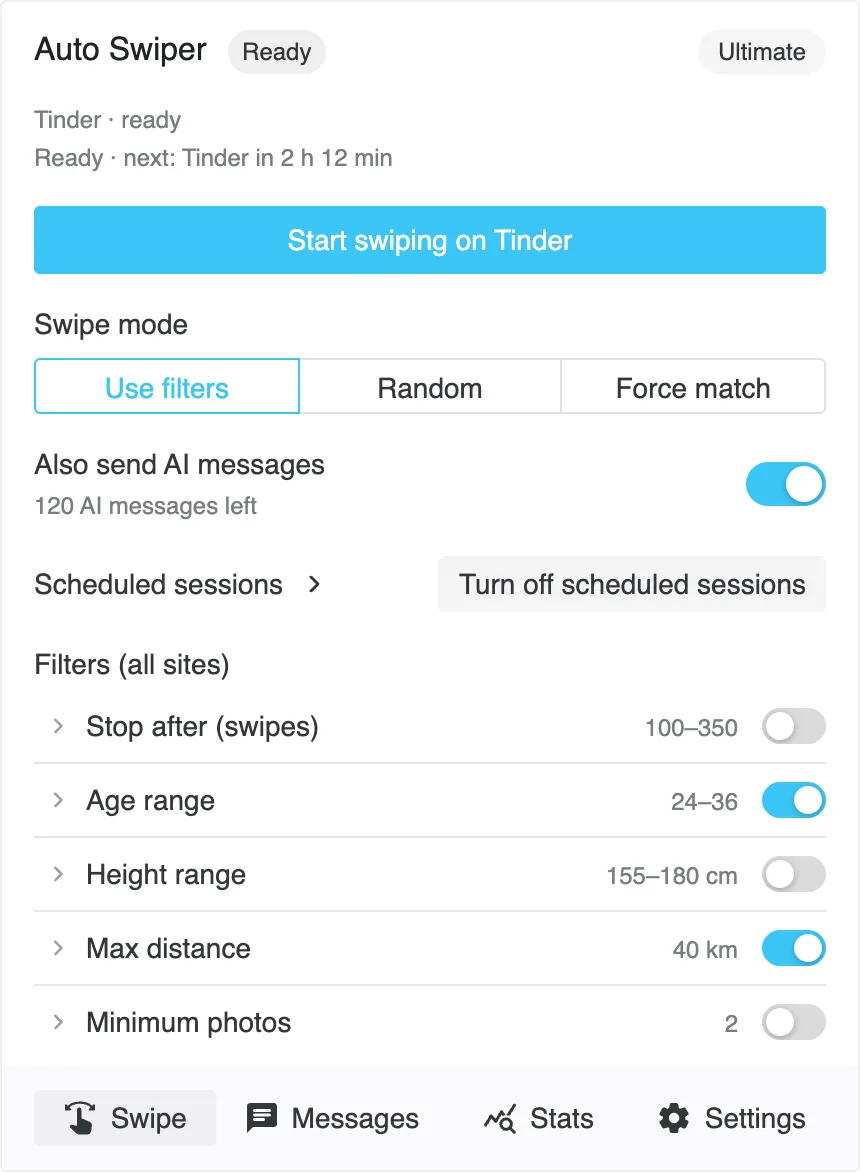
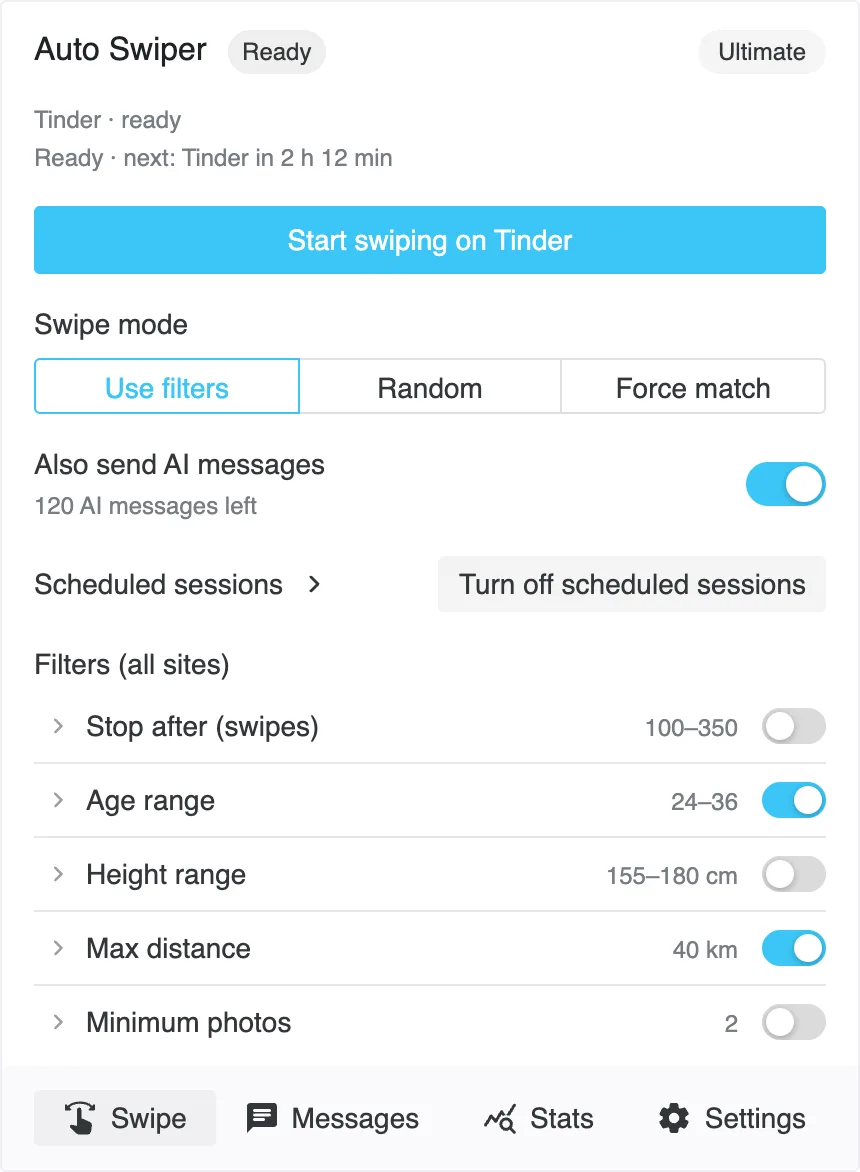
Go to the dating site in a normal browser tab and let its swiping screen load. Open the Auto Swiper popup and you'll see one large button: Start swiping on Tinder, or whichever site you're on.
Press it. The popup stays open so you can watch the first few swipes, and the button turns into a red Stop. While the session runs you get live counts of likes and passes, plus the last profile Auto Swiper looked at and why it liked or passed it.
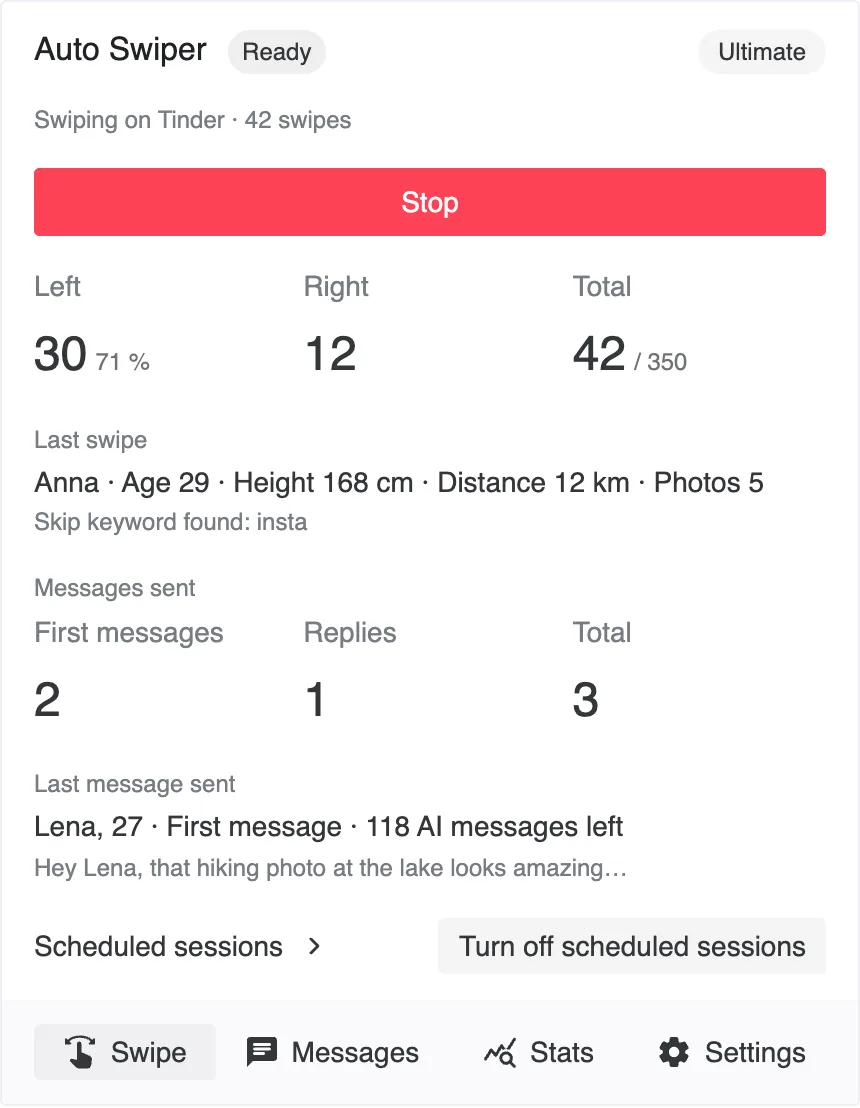
If the popup says to open a supported site instead of offering Start, you're on a tab Auto Swiper can't work with — the wrong page on the right site, for instance. Navigate to the swiping screen and try again.
Step 5: Set up your filters
Out of the box Auto Swiper likes everything. That gets you volume, not matches. Open the popup's home screen and you'll see your filters as a list of rows, each showing its current value:
- Age range and Max distance — the basics.
- Minimum photos — skip profiles with a single picture.
- Only like profiles with a bio — skip the empty ones.
- Keywords — three lists that decide by what a profile says about itself.
Click a row to open it and change the value. Filters apply on every site; where a site can't support one, the row stays visible and tells you so rather than quietly vanishing.
The keyword lists are the ones worth spending time on, and you can try them out without installing anything using the free keyword tester. There's a fuller walkthrough of every filter in filters, swipe modes and swipe presets explained.
Step 6: Slow it down
The default timings are already conservative, but it's worth knowing where they live: Settings → Swiping. There you'll find the delay between swipes, how often Auto Swiper takes a break, and how long each break lasts.
Dating sites notice accounts that swipe at machine speed. Swipe like a human explains which settings matter and why running slower gets you further.
What to expect
A first session is a good time to watch rather than walk away. You'll see which of your filters fire most often, and whether your keyword lists are too strict — a run that passes on nearly everything usually means a required-keyword list that's too narrow.
Auto Swiper stops on its own when it reaches your Stop after limit, when the site runs out of profiles, or when you hit the site's own daily like limit. In that last case you get a notification with a countdown to when it resets.
Where to go next
- Filters, swipe modes and swipe presets explained — what each setting actually does.
- Test your keywords before you swipe — the free tool for checking a keyword list against a real bio.
- Scheduled sessions — have Auto Swiper run at set times instead of when you remember to.
- What's new in Auto Swiper 4.0 — if you used an older version, this is what moved.
Stuck on any of this? Write to support@auto-swiper.ch. How to report a bug lists what to include so we can help on the first reply.