33% off your first payment

Ends Nov 30 See plans

Blog

How to set Auto Swiper up, what each feature does, and what changed in the latest release, for the browser extension and the Android app.

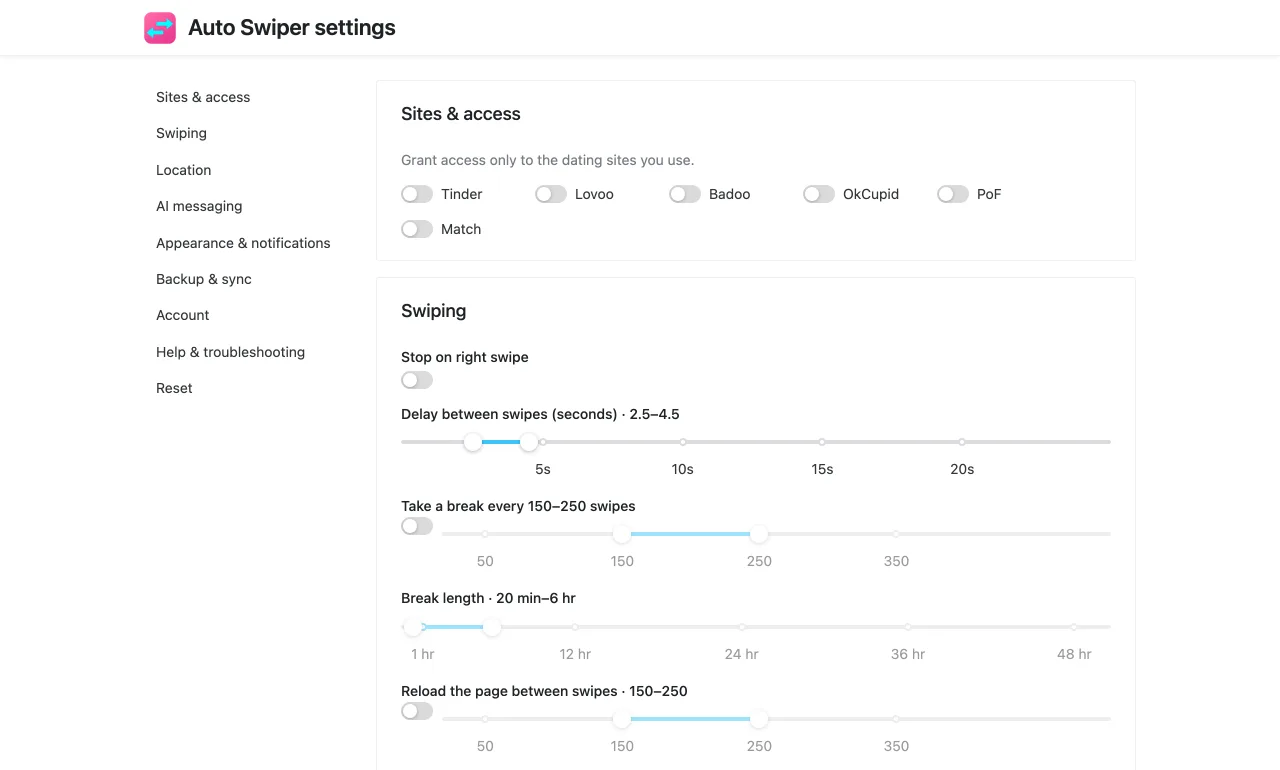
The Auto Swiper settings page open in a browser tab, with the section nav and the Sites & access and Swiping sections
Support Troubleshooting

How to report a bug so we can actually fix it

· 6 min read

Export your logs, tell us the site and the browser, describe what you expected. Here is exactly what to send so the first reply is a fix and not a question.

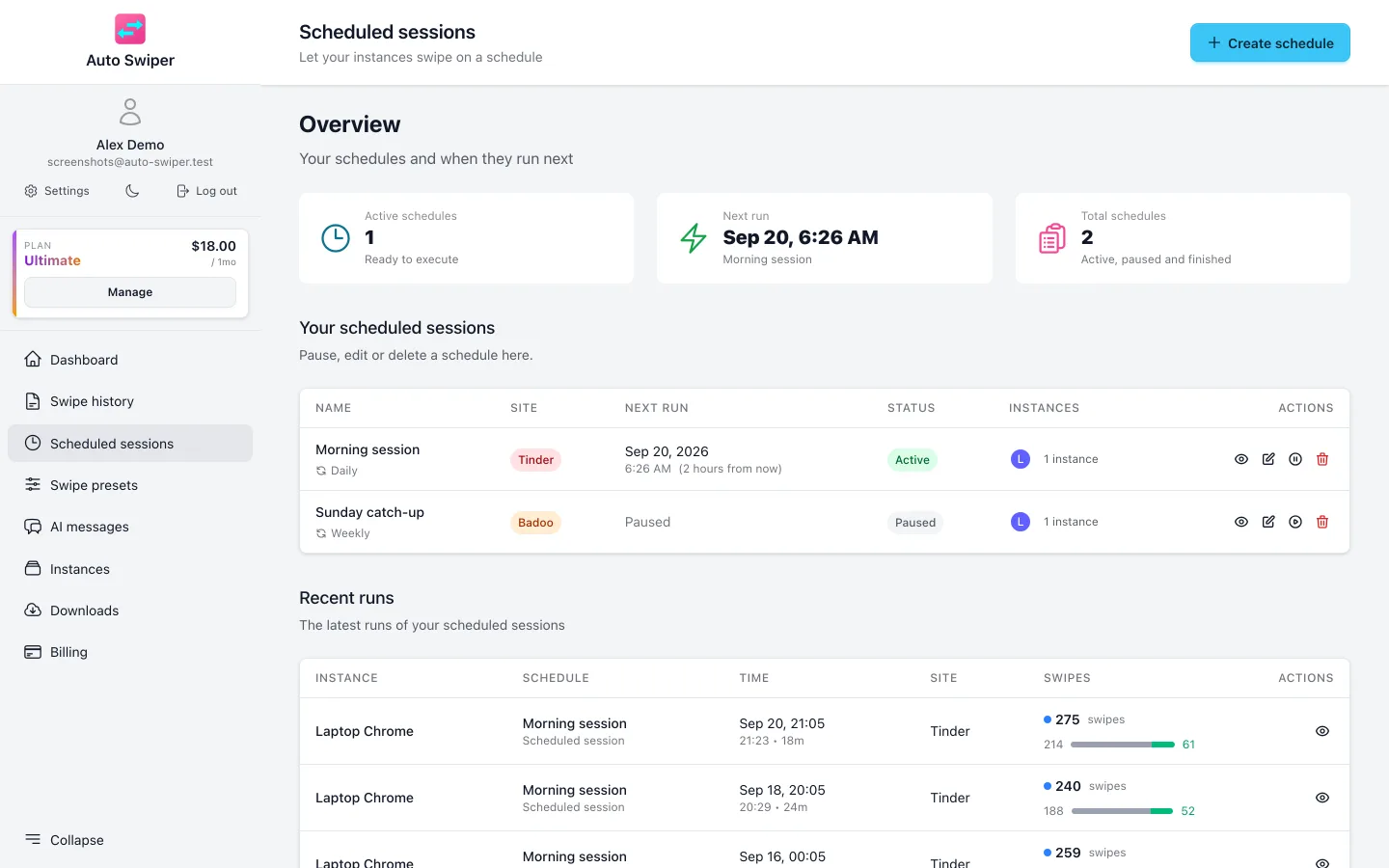
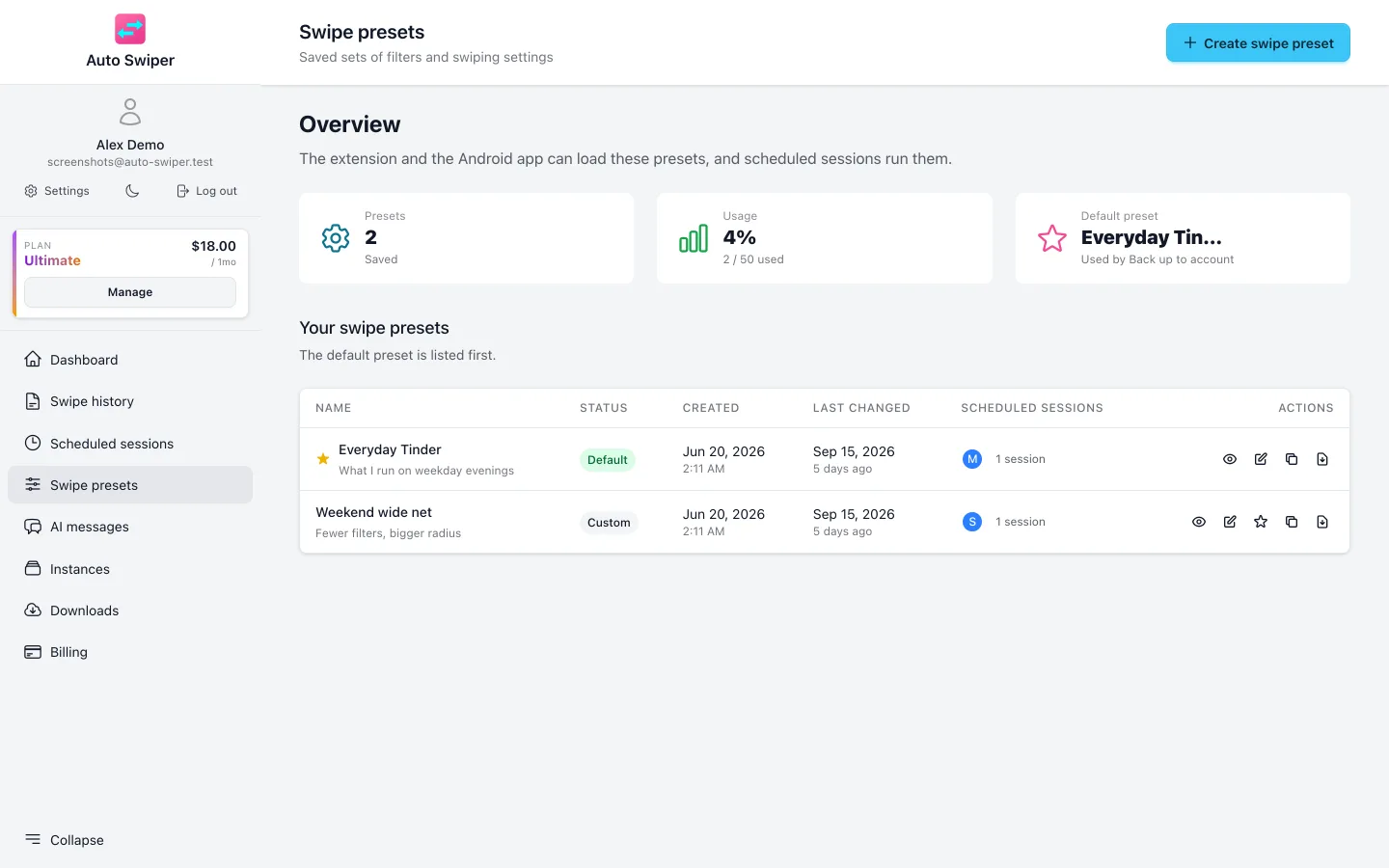
The Scheduled sessions page in the Auto Swiper dashboard, listing schedules with their site, next run, status and instances
Features Scheduled sessions

Scheduled sessions: swipe on a timetable

· 5 min read

Set the times once in your dashboard and Auto Swiper runs itself — in the browser, on your phone, or both, each with its own filters.

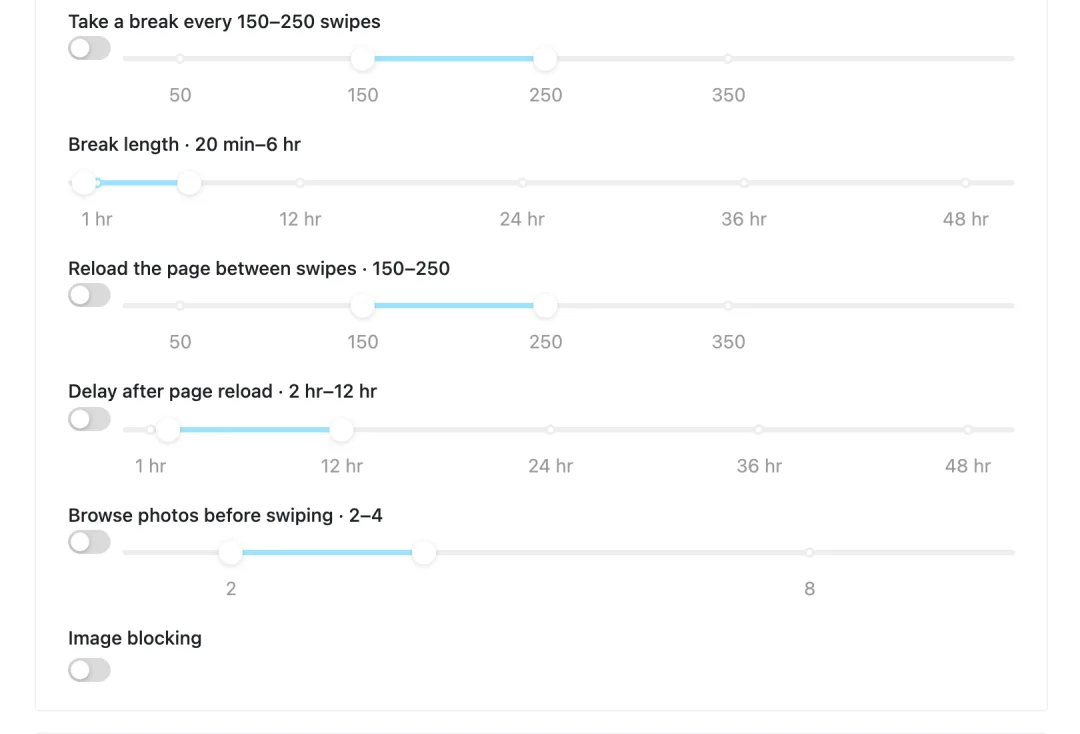
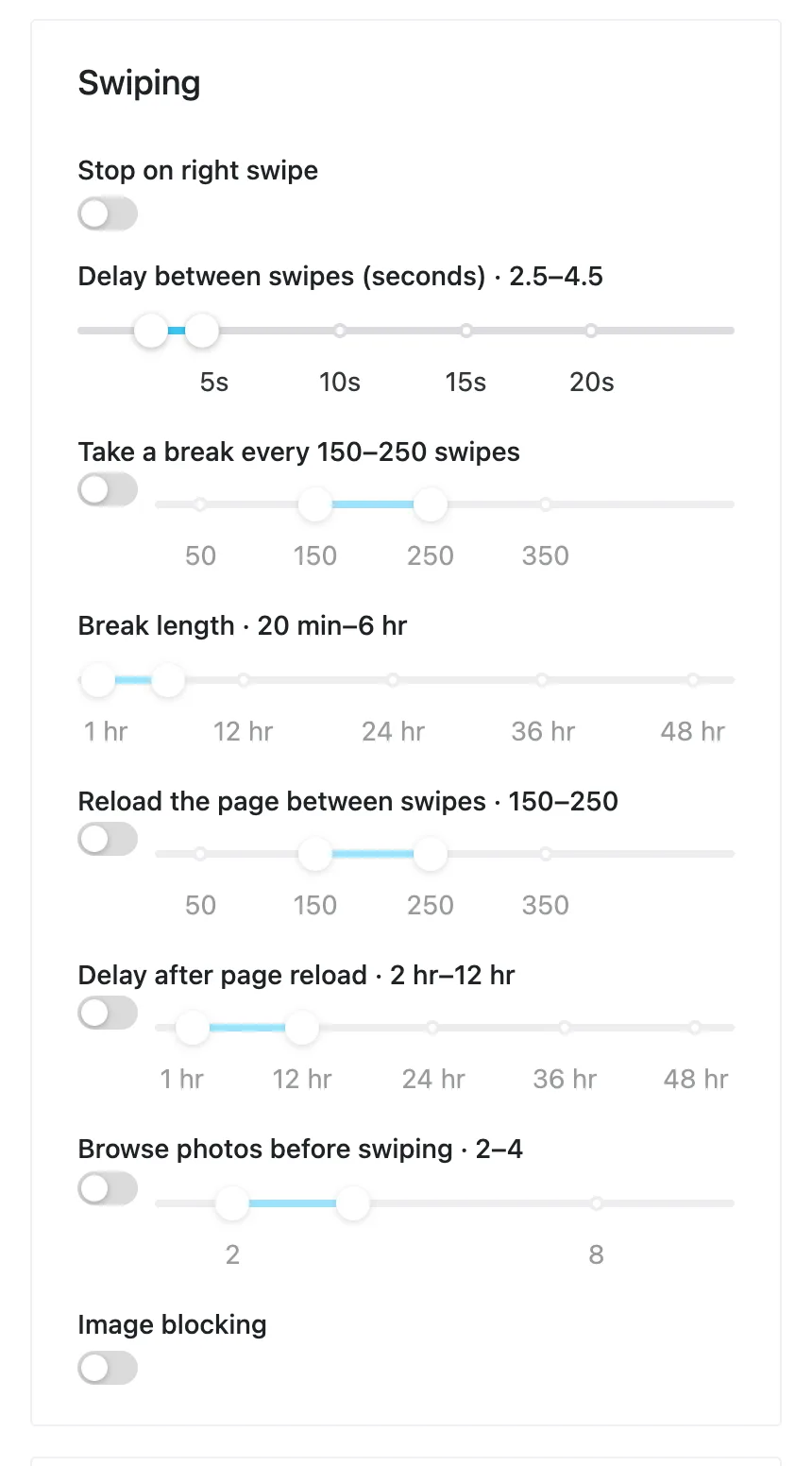
The Swiping section of the Auto Swiper settings page, ending with the Image blocking switch
Features Performance

Image blocking: save around 8.6 GB of data a year

· 3 min read

One switch stops profile photos downloading while Auto Swiper works. Useful on a metered connection, essential if you pay for proxy traffic.

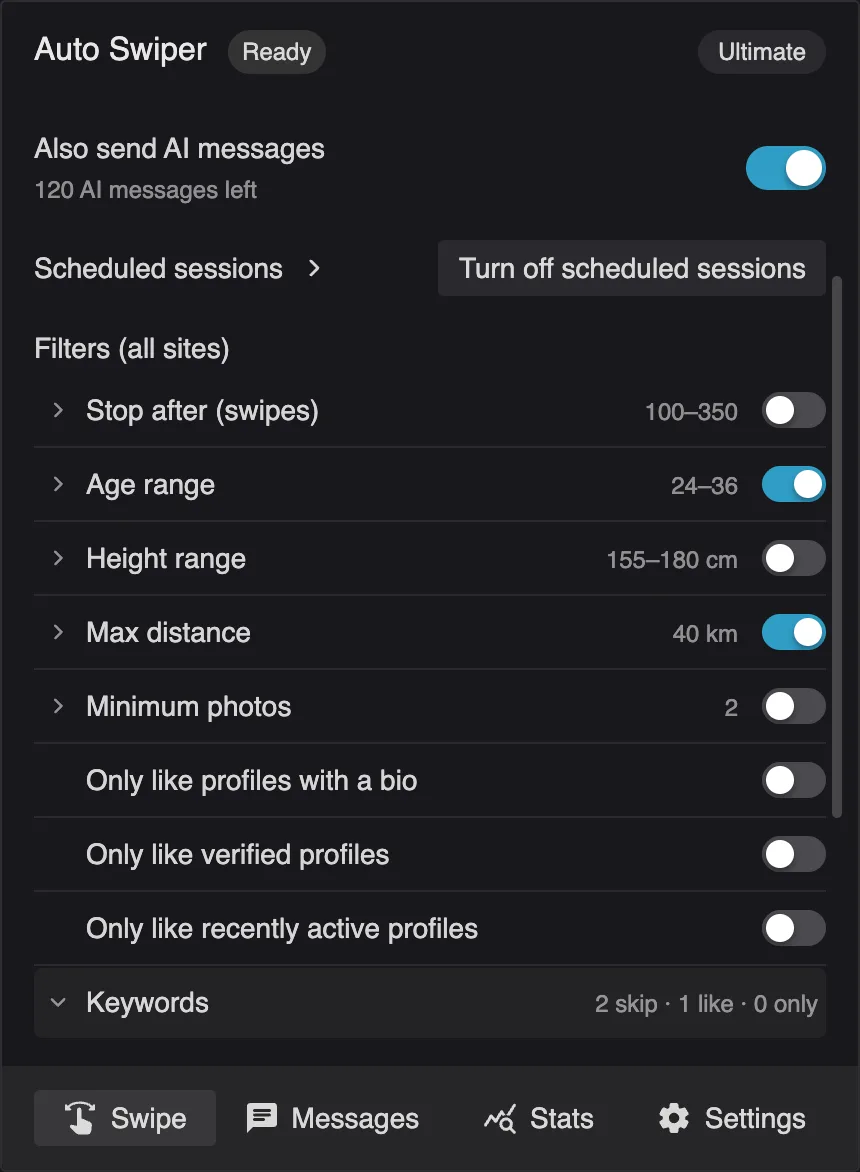
The Keywords filter opened in the Auto Swiper popup, showing the Skip if profile mentions and Always like if profile mentions lists
Features Keywords

Test your keywords before you swipe

· 4 min read

A free tool that shows what your skip, always-like and only-like keywords would do to a real profile — no account, no install, no wasted session.

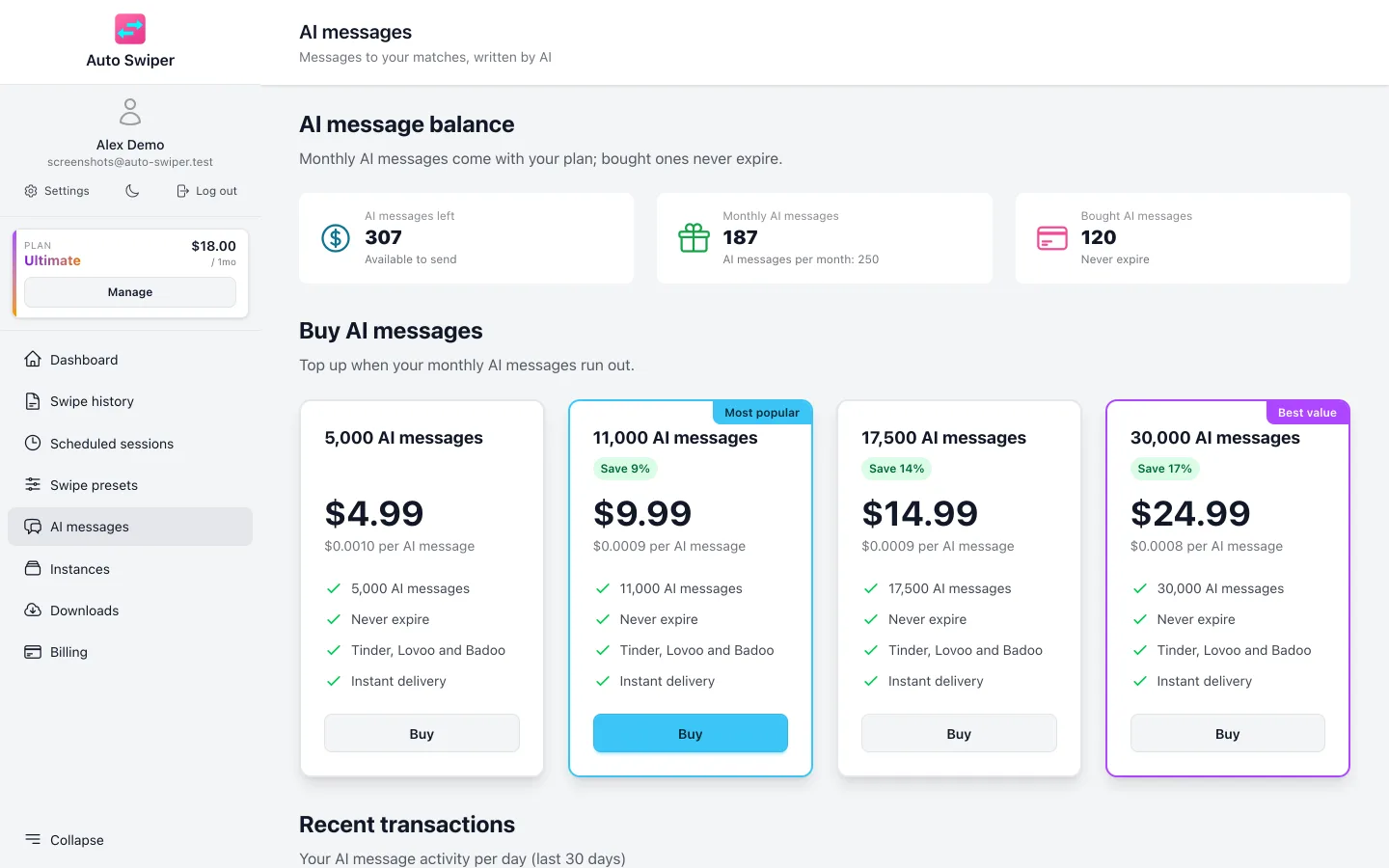
The AI messages page in the Auto Swiper dashboard: AI message balance, monthly and bought AI messages, and the packages you can buy
Features AI messages

AI messages: what they do, and what they never do

· 4 min read

Auto Swiper can draft an opener from what a match actually wrote in their profile. Here is how it works, what it costs, and why nothing is sent behind your back.

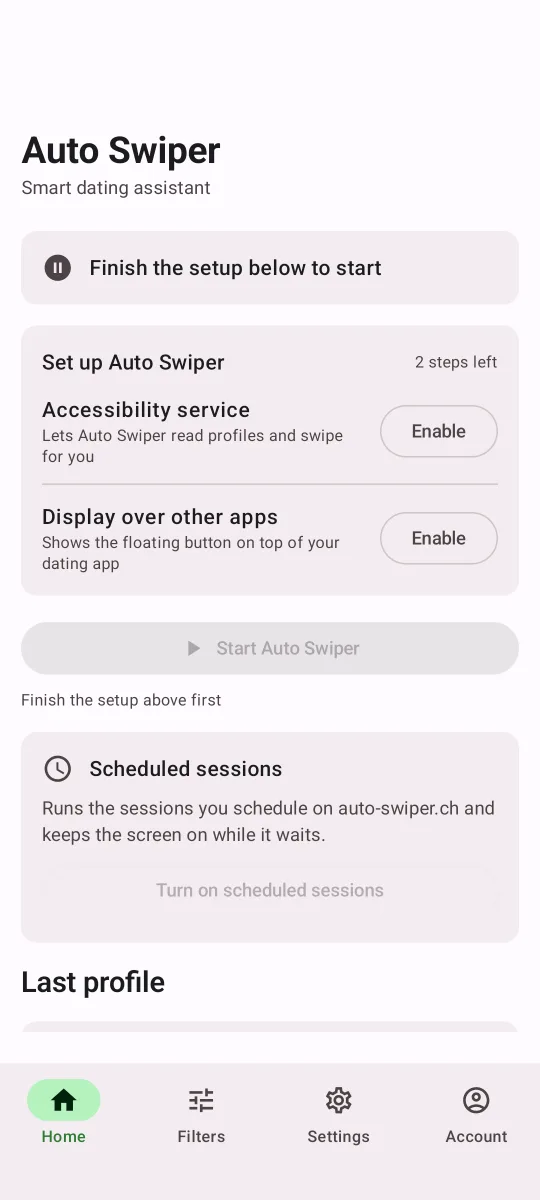
Auto Swiper on Android showing the Set up Auto Swiper checklist with Enable buttons for Accessibility service and Display over other apps
Getting started Android

Getting started with Auto Swiper on Android

· 5 min read

Install the app, grant two permissions, and let Auto Swiper swipe Tinder, Bumble, Hinge, Badoo and Lovoo directly in the apps on your phone.

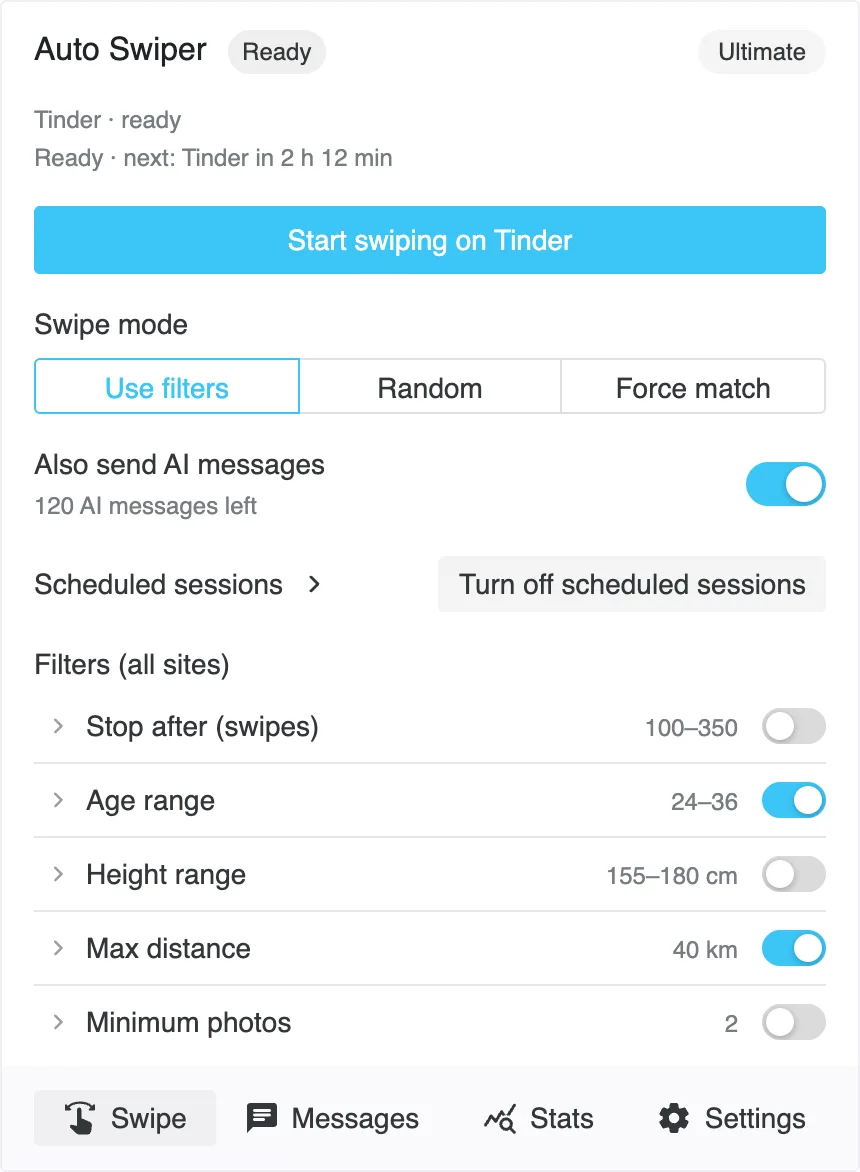
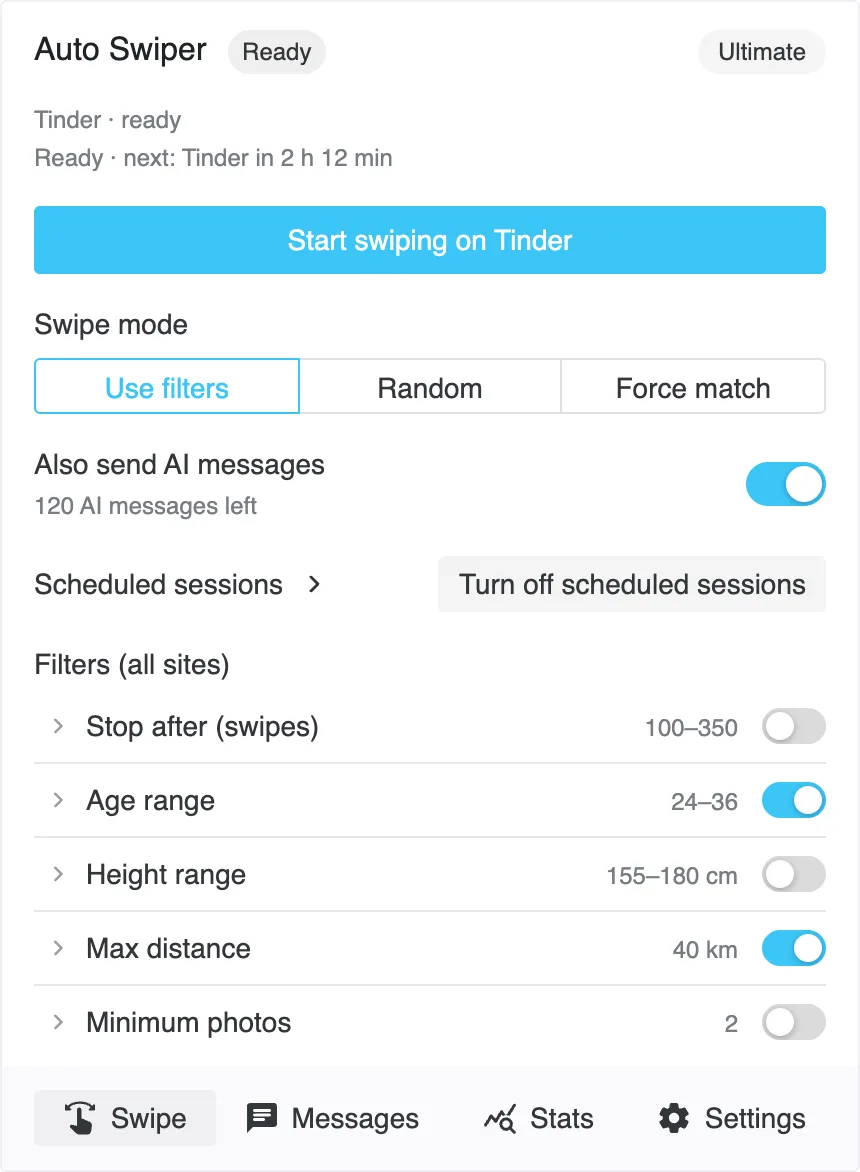
The Auto Swiper popup with the Start swiping on Tinder button, the Swipe mode row and the Also send AI messages switch
Getting started Browser extension

Getting started with the Auto Swiper browser extension

· 5 min read

From installing the extension to your first automated swipe on Tinder, Lovoo, Badoo, PoF, OkCupid or Match — the whole setup takes about five minutes.

A topic you'd like us to cover? Contact us and let us know.