Image blocking: save around 8.6 GB of data a year
One switch stops profile photos downloading while Auto Swiper works. Useful on a metered connection, essential if you pay for proxy traffic.
Here's something that only becomes obvious once you automate: when Auto Swiper swipes for you, nobody is looking at the photos.
The browser still downloads every one of them. Full-resolution profile pictures, several per profile, hundreds of profiles per session — all fetched, decoded, held in memory, and never seen by a human being.
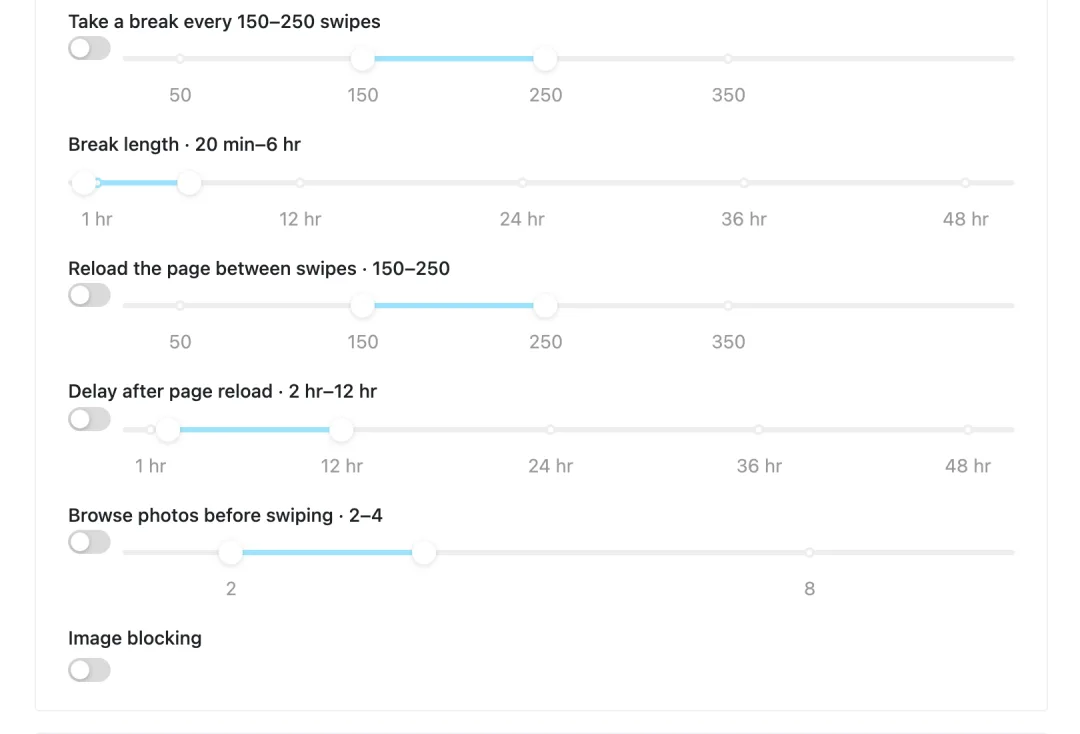
Image blocking turns that off. It's in Settings → Swiping, it's one switch, and it's available on Pro and Ultimate.
How much data that actually is
Profile images average somewhere around 100 KB each. Based on 30 minutes of swiping a day, five days a week, that works out to:
| Accounts | Per day | Per month | Per year |
|---|---|---|---|
| 1 | 36 MB | 720 MB | 8.64 GB |
| 5 | 180 MB | 3.6 GB | 43.2 GB |
| 10 | 360 MB | 7.2 GB | 86.4 GB |
| 20 | 720 MB | 14.4 GB | 172.8 GB |
These are estimates from those assumptions, not measurements from your account. Swipe more than half an hour a day and the numbers go up proportionally; your own mileage depends on how image-heavy your deck is.
For one person on home broadband, 8.6 GB a year is a rounding error. Two situations make it matter a great deal.
If you pay per gigabyte
Anyone running Auto Swiper through a proxy is usually paying for traffic by the gigabyte, and profile images are the overwhelming majority of what a swiping session transfers. Blocking them can cut your proxy traffic by something close to 80%, which turns directly into money.
Same story on a tethered connection or a metered data plan. This is the setting that makes automation viable on a capped line.
If you run several accounts
The savings scale linearly, and so does the memory. A browser holding hundreds of decoded images per profile across several windows is doing a lot of work for no purpose. Turning image blocking on makes long multi-account sessions noticeably less heavy — especially on older hardware.
How it works
Auto Swiper tells your browser to refuse image requests to each dating site's photo CDN — the specific servers that serve profile pictures:
- Tinder —
images-ssl.gotinder.com - Lovoo —
img.lovoo.com - OkCupid —
cdn.okccdn.com - Badoo —
*.badoocdn.com - Plenty of Fish —
pics.pof.com - Match — the Akamai photo paths
The requests are blocked at the browser level, so the data never crosses your connection at all. The rest of the page — the profile text, the buttons, the site's own scripts — loads exactly as normal.
What still works
Your filters. Age, distance, bio, keywords all read text, not pictures. They're unaffected.
Minimum photos. This counts how many photos a profile has, which the site tells the page in its data. It doesn't require the images to actually download.
AI messages. The message generator only ever reads text — the bio, the prompts, the job, the interests. It has never looked at photos, so blocking them changes nothing.
What doesn't
You. Profile photos won't render while it's on, so this isn't a mode for browsing by hand. Turn it off in the same place whenever you want to look through your deck yourself, and turn it back on for the next session.
That's the honest trade: it's a setting for when the machine is doing the looking.
Turning it on
- Open the Auto Swiper popup.
- Click Settings at the bottom.
- Go to the Swiping section.
- Turn on Image blocking.
It takes effect immediately — no reload, no restart. Free and Basic plans don't see the switch.
Browser only; there's no equivalent on Android, where the dating apps handle their own image loading.
Related reading
- Swipe like a human — the other settings in the same section.
- AI messages — text-only, and unaffected by this.
- Getting started with the browser extension.