Test your keywords before you swipe
A free tool that shows what your skip, always-like and only-like keywords would do to a real profile — no account, no install, no wasted session.
Keyword filters are the most useful thing Auto Swiper does and the easiest thing to get wrong. You type in a list that looks obviously correct, start a session, and two hundred swipes later discover it passed on almost everyone — or liked people who match nothing you were after.
The problem is that you can't see a keyword list working. You only see the result, long after the mistake.
So we built a tester: auto-swiper.ch/tools/keyword-tester. Paste in a profile, type your keywords, and it tells you what Auto Swiper would have done and why. It's free, it needs no account, and you don't need the extension installed to use it.
How to use it
The page has two halves.
Your keywords — the same three lists as the extension:
- Skip if profile mentions
- Always like if profile mentions
- Only like if profile mentions one of
If you don't want to start from nothing, there are example sets to load — serious relationships, casual dating, fitness enthusiast, travel lover. They're a decent starting point and a good way to see how the three lists interact.
Test profile — a text box for the profile you're testing against. Paste in a real bio from the dating site you use. There are example profiles too, but your own deck is a better test than ours.
Hit test and you get the verdict:
- ❌ Pass (left swipe)
- ✅ Like (right swipe)
- ⚠️ No "only like" keyword found
- ➡️ Other filters decide
That last one is important and often missed. If your keyword lists have nothing to say about a profile, the decision falls through to your other filters — age, distance, photos. A keyword list is not the whole decision.
The three mistakes it catches
A skip list that's too broad. no and not look harmless until you notice half of all bios contain "not looking for hookups". Matching looks anywhere inside the text, so ass does fire inside passion unless you write /\bass\b/ — and real words still appear in contexts you didn't imagine. The tester shows you that on the first real bio you paste.
An only-like list that's too narrow. This is the big one. "Only like if profile mentions one of" is a hard gate: a profile that mentions none of your words is passed, no matter how well it fits everything else. Three specific words here can quietly reject 90% of your deck. The ⚠️ result tells you exactly when that's happening.
An always-like list that outranks everything. Always-like fires immediately, before age, distance or height are checked. Put something common in there and you'll like people well outside every other filter you set. The tester shows the override happening rather than leaving you to deduce it.
Regular expressions
A plain word matches anywhere inside the text, so mus also finds "Museen" — if you want the whole word only, write it as /\bdog\b/. For that and anything else cleverer, wrap the entry in slashes:
/yoga|pilates|climbing/— any of the three./travell?ing/— one spelling or the other./\bdog\b/— explicit word boundaries.
Case is ignored unless you say otherwise. If a pattern is invalid, Auto Swiper falls back to searching for it as literal text rather than erroring out — which can look like a filter silently not working. The tester is the fastest way to catch a broken pattern, because you'll see the result not change when it should.
What gets searched
Not just the bio. Keyword matching covers the bio, the prompts, the job title and the interests. That's more surface than most people assume, and it's why a word that seems rare in bios can turn out to be common once prompts are included.
Paste a full profile into the tester, not just the bio paragraph, and you'll get a realistic answer.
How many keywords you get
Per list, by plan: Free 10, Basic 20, Pro 50, Ultimate unlimited.
Ten is less limiting than it sounds if you use regular expressions — a single /dog|puppy|rescue|shelter/ entry covers four concepts in one slot.
Then put them in
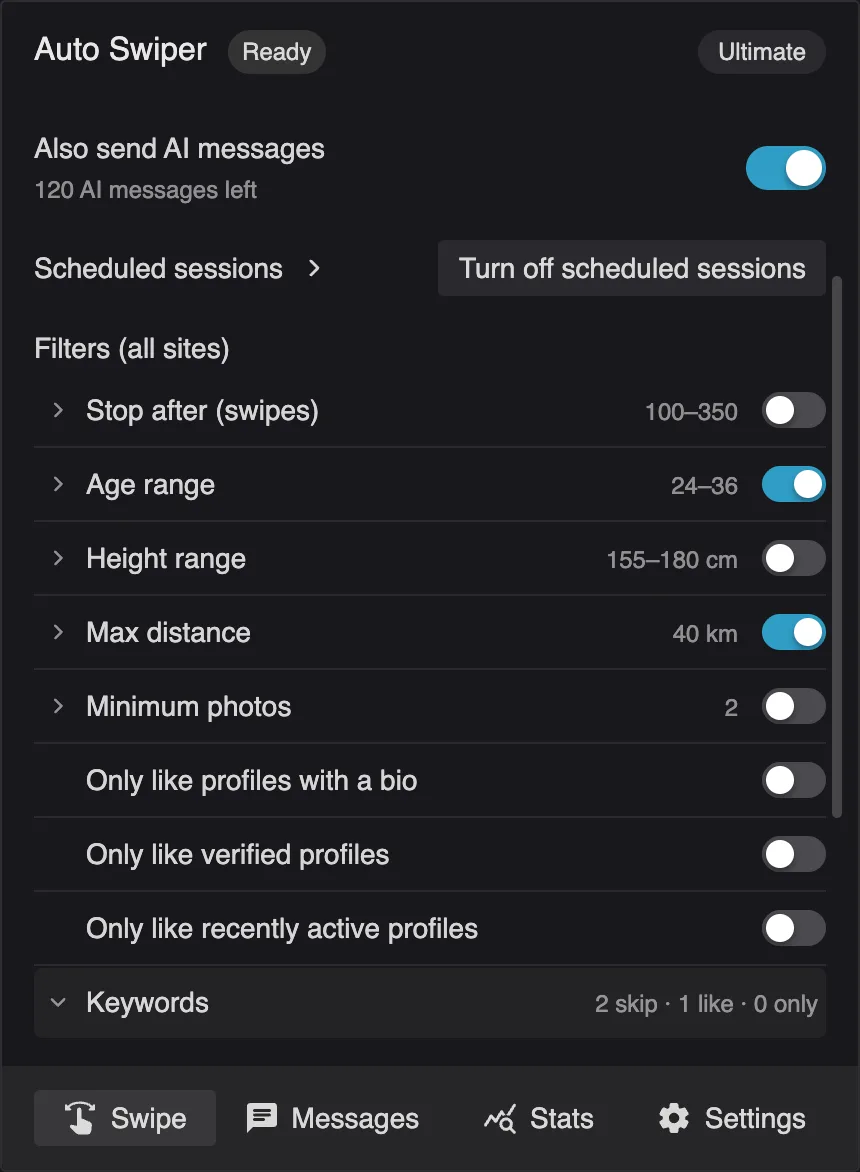
Once a list behaves the way you want, copy it into the extension: open the popup, click the Keywords row, and fill in the same three lists. On Android it's Filters → Keywords.
Worth re-testing every month or two. The language people use in bios shifts, and a list that was sharp in spring can be quietly over-filtering by autumn.
Related reading
- Filters, swipe modes and swipe presets explained — how keywords fit with the rest of the filters.
- Getting started with the browser extension.
- Swipe like a human — the settings that protect your account.