Scheduled sessions: swipe on a timetable
Set the times once in your dashboard and Auto Swiper runs itself — in the browser, on your phone, or both, each with its own filters.
Automating your swiping still leaves one manual step: remembering to start it. And the times you remember tend not to be the times that work — late at night, at your desk, whenever the thought happens to cross your mind.
Scheduled sessions remove that step. You describe when you want to be active, and Auto Swiper runs at those times. It's an Ultimate feature, and it works across the browser extension and the Android app.
Where schedules live
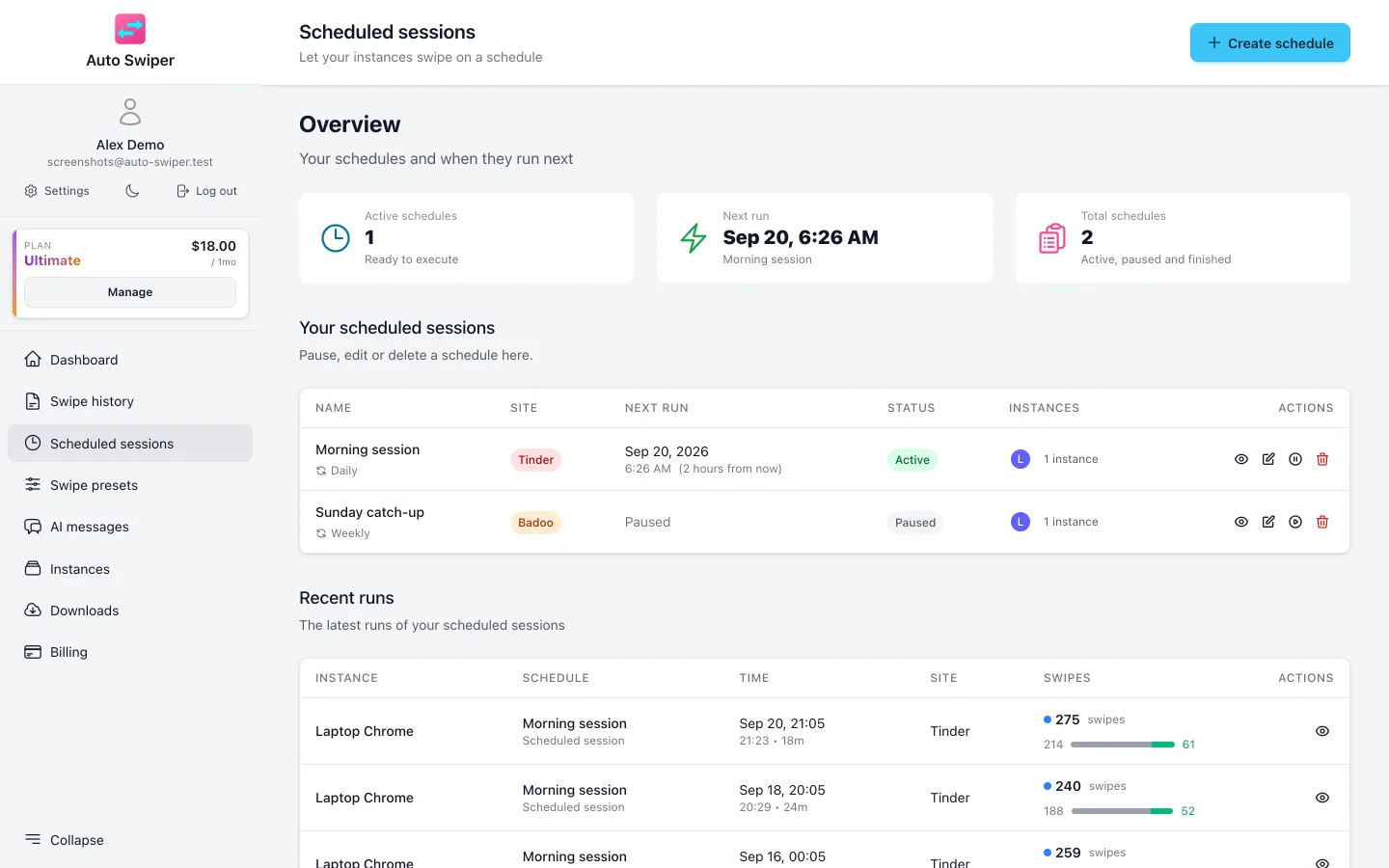
Not in the extension, and not in the phone app. Schedules are created in your dashboard at app.auto-swiper.ch/scheduled-sessions.
That's deliberate: the schedule belongs to your account, not to one browser on one machine. Both apps just arm themselves and execute what the dashboard tells them. Change a schedule on your laptop and your phone picks it up too.
Creating one
A schedule has these parts:
- Name — something you'll recognize in a list. "Weekday mornings".
- Site — one per schedule. Want Tinder and Badoo on the same timetable? That's two schedules.
- Date and time, with a timezone so travel doesn't shift everything.
- Recurrence — none, daily, weekly or monthly, with an interval from 1 to 30. "Every 2 days" is an interval of 2 on daily. You can set an end date.
- Instances — which of your running copies of Auto Swiper should execute it. One laptop, one phone, or several.
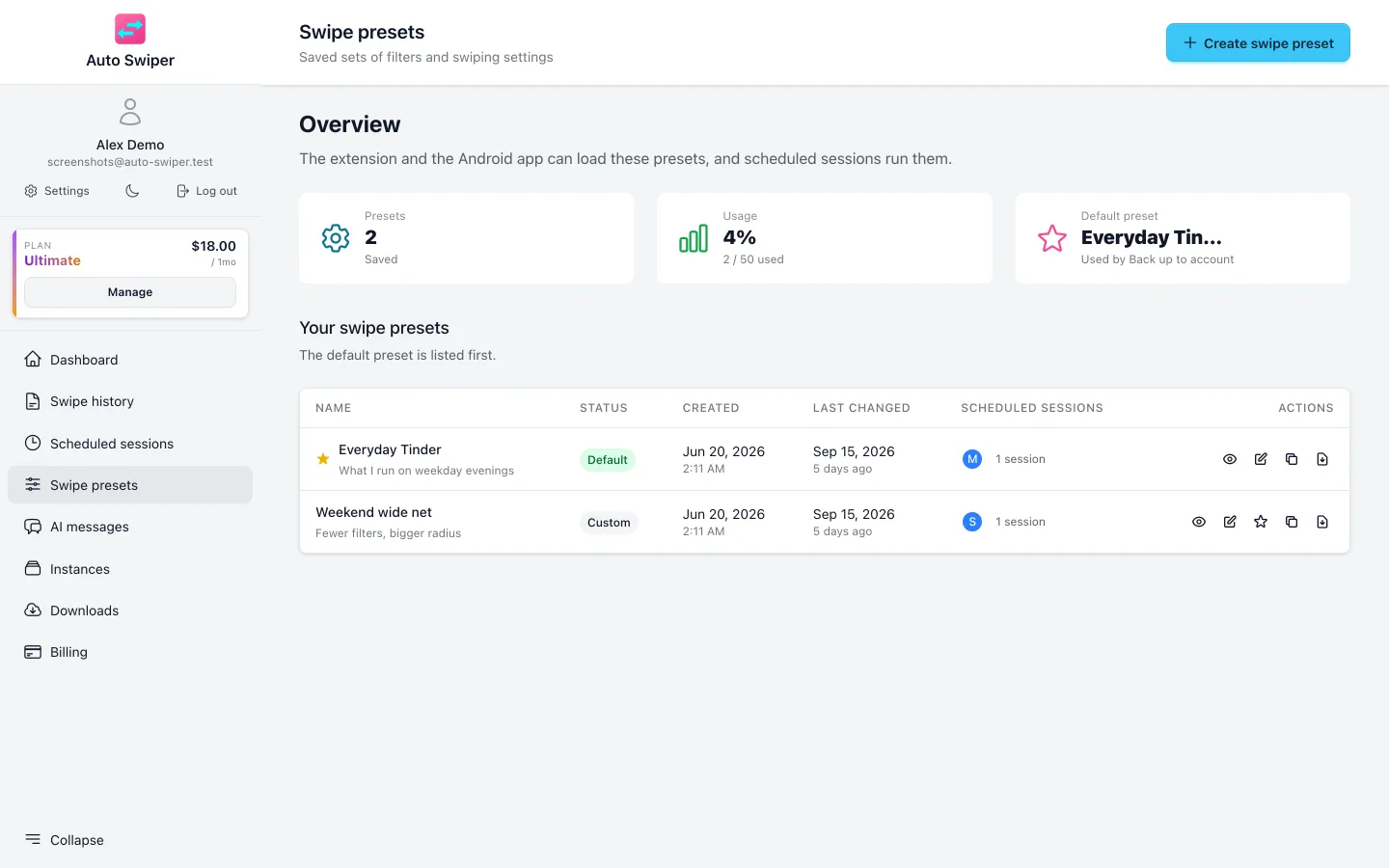
- Swipe preset — the filters and swiping settings to use for this run.
That last one is the interesting part. Each schedule carries its own swipe preset, so a quick morning run and a longer weekend session can behave completely differently. The preset also controls how long the run effectively lasts, through its Stop after limit — there's no separate duration field.
Two schedules can't overlap on the same instance. The dashboard assumes a session occupies about half an hour and will tell you when a new schedule collides with an existing one.
Which sites, where
The two apps cover different platforms, and a schedule can only target a site the chosen instance can actually reach:
| Platform | Extension | Android |
|---|---|---|
| Tinder, Badoo, Lovoo | Yes | Yes |
| PoF, OkCupid, Match | Yes | — |
| Bumble, Hinge | — | Yes |
Arming the browser extension
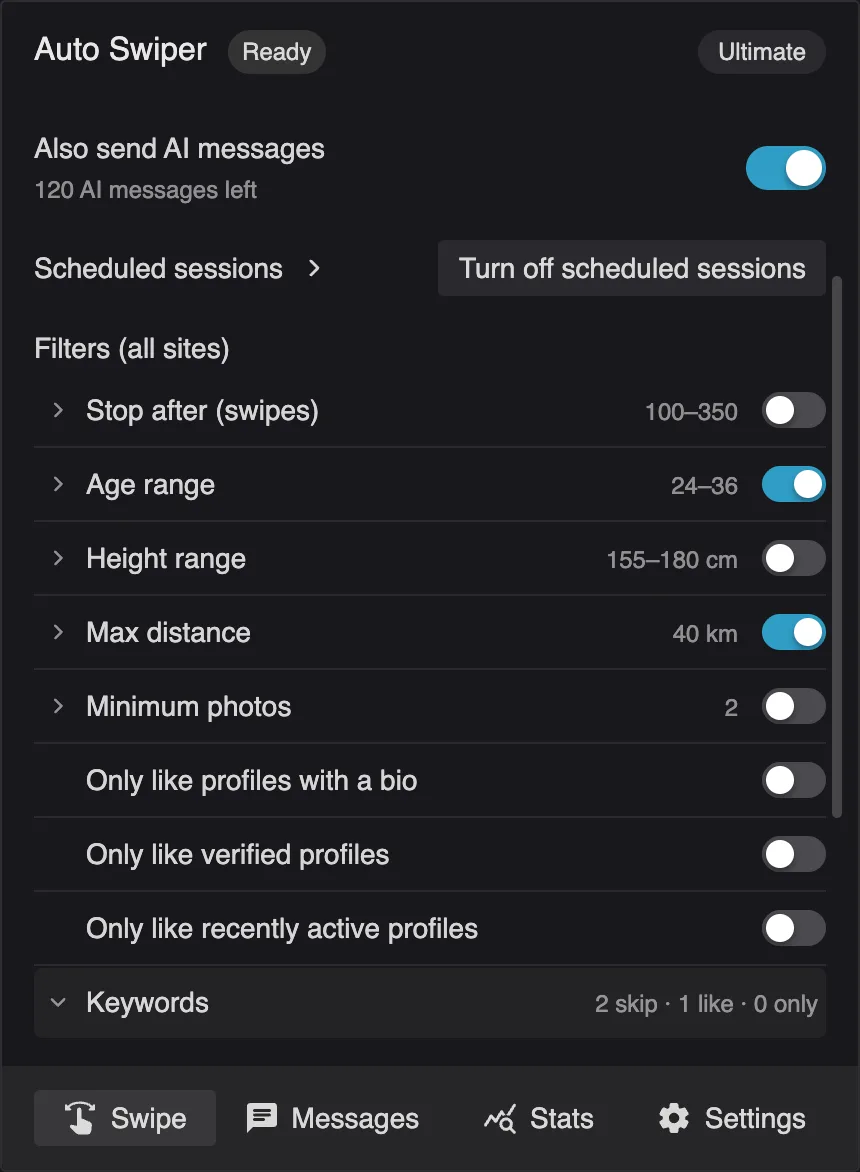
On the popup's home screen there's a Scheduled sessions row. Turn it on and the extension is armed: it checks in periodically and starts a session when one falls due.
The status line tells you where you stand — Ready · next: Tinder in 2 h, or Running: Morning session (Tinder). You can see the next five upcoming sessions, and a "Manage schedules" button takes you to the dashboard. While armed, the toolbar icon shows a gray dot.
Two things worth knowing:
Your browser has to be open and your computer awake. Auto Swiper cannot wake a sleeping machine — it has no permission to, and we've deliberately never asked for one. If the computer does sleep, a session that came due in the last 20 minutes still starts once you're back. Beyond that window it's skipped.
Sessions run in a background tab by default, so a scheduled run doesn't grab focus mid-sentence. There's a switch to bring the dating tab to the front instead, off unless you turn it on.
Arming the Android app
Same idea. The home screen has a Scheduled sessions card with one switch: Turn on scheduled sessions. Once it's on, the app checks for due sessions every few minutes and starts swiping when one arrives.
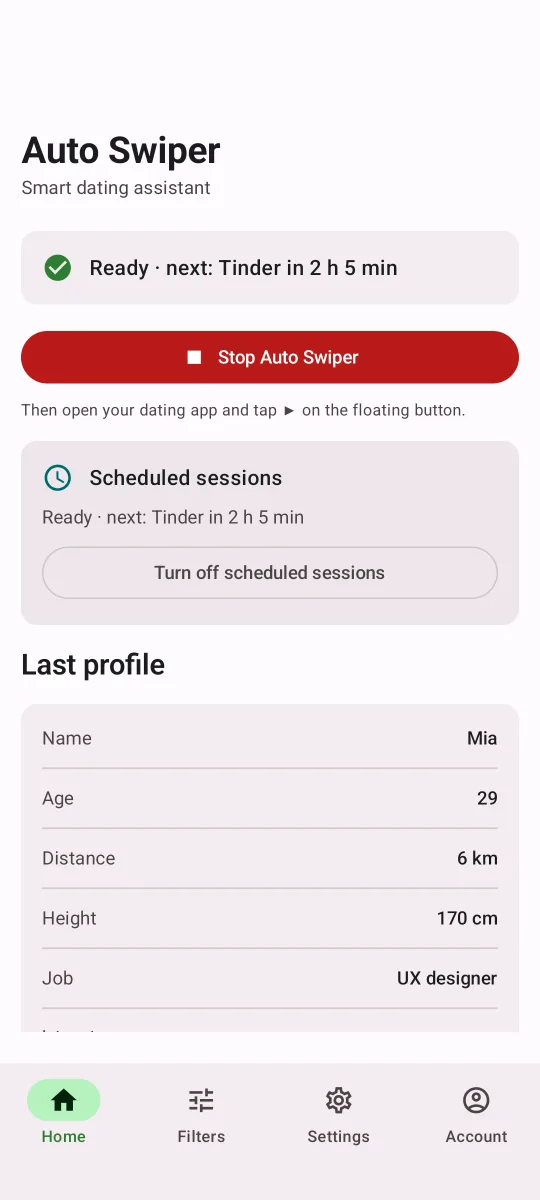
The notification follows the same status text, so you can see what's coming without unlocking.
The honest limitation: the app keeps the screen from timing out while it's armed, but it cannot run with the screen off or the phone locked. There's no wake lock and no battery-optimization exemption. If you lock the phone, the session won't happen. Plan schedules for times when the phone will be sitting awake — on a charger on your desk, for instance — and be aware that aggressive battery management on some phones can stop it regardless.
Using it well
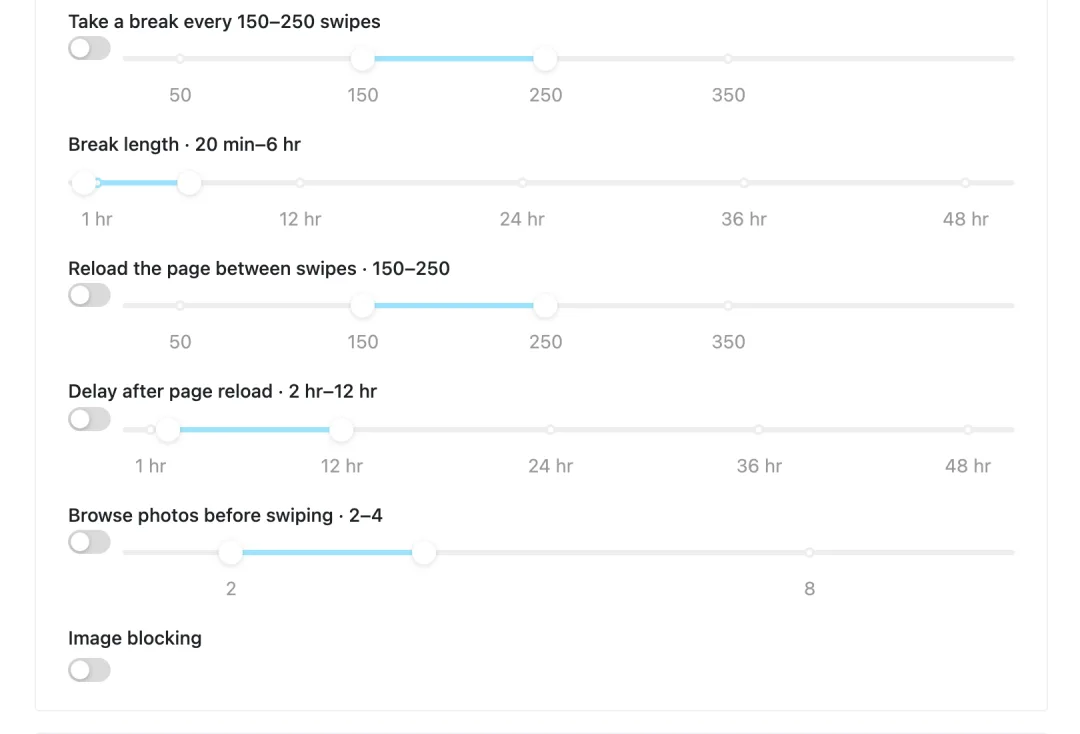
Match real hours. The point isn't just convenience. Being active when the people you want to match with are active genuinely affects results, and it's also the least suspicious pattern — see swipe like a human.
Two short runs beat one long one. A morning and an evening session look more like a person than a single marathon.
Give each schedule the right preset. A weekday run and a weekend run don't need the same filters, and this is the feature that makes that cost nothing.
Don't schedule the small hours. An account that reliably swipes at 04:00 stands out for the wrong reasons.
Checking what happened
Your dashboard's Swipe history shows every run: when it went, which site, how many likes and passes, and why each decision was made. It's the quickest way to find out that a schedule has been quietly failing because the laptop was shut.
Related reading
- Filters, swipe modes and swipe presets explained — presets are what schedules carry.
- Swipe like a human — why timing matters.
- Getting started on Android.