Getting started with Auto Swiper on Android
Install the app, grant two permissions, and let Auto Swiper swipe Tinder, Bumble, Hinge, Badoo and Lovoo directly in the apps on your phone.
Two of the biggest dating platforms no longer have a web version worth automating. Bumble shut theirs down, and Hinge never really had one. That's why Auto Swiper has a native Android app: it drives the real apps on your phone, the same ones you'd use by hand.
Here's how to get it running.
What you need
- Android 14 or newer. The app needs the current accessibility APIs; older versions can't run it.
- A Pro or Ultimate plan. Unlike the browser extension, the Android app has no Free plan.
- The dating apps installed and logged in on the same phone.
Auto Swiper on Android supports Tinder, Bumble, Hinge, Badoo and Lovoo. Bumble and Hinge are Android-only; the other three work in the browser too.
Step 1: Install and log in
Download the app from your account's Downloads page — it isn't on the Play Store, because automating dating apps is against their store rules. The download page walks you through allowing the install.
The app updates itself after that. It checks for a new version, verifies the download, and asks before installing. There's nothing to re-download by hand.
On first launch you get the login screen. Log in with the same email and password you use on this website.
Step 2: Grant two permissions
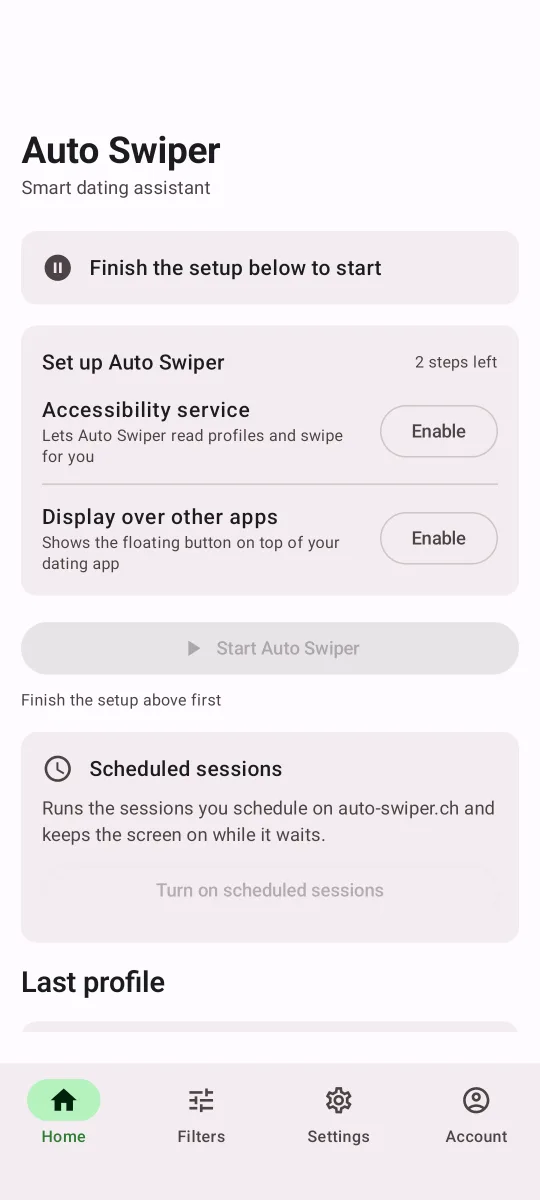
After logging in, the home screen shows a short Set up Auto Swiper checklist with exactly two entries:
- Accessibility service — this is how Auto Swiper reads what's on screen and performs the swipes. Android will show a scary-sounding warning here; that's the standard text for every accessibility app, from screen readers upwards.
- Display over other apps — this puts the floating control button on top of the dating app so you can start and stop without switching away.
Tap the Enable button next to each and Android takes you to the right settings screen. The checklist disappears once both are granted.
You'll also see a one-time notice worth reading: automating dating apps may breach their terms of service and can get an account restricted. That's a real risk, not boilerplate. It lives in Settings → Help & about afterwards.
Step 3: Start swiping
Open the dating app you want to automate. The floating Auto Swiper button sits on top of it — drag it anywhere that suits you.
Tap the button to expand it, then tap ▶. Auto Swiper starts reading profiles and swiping. The overlay shows what it's doing, the profile it just decided on, and a red stop control.
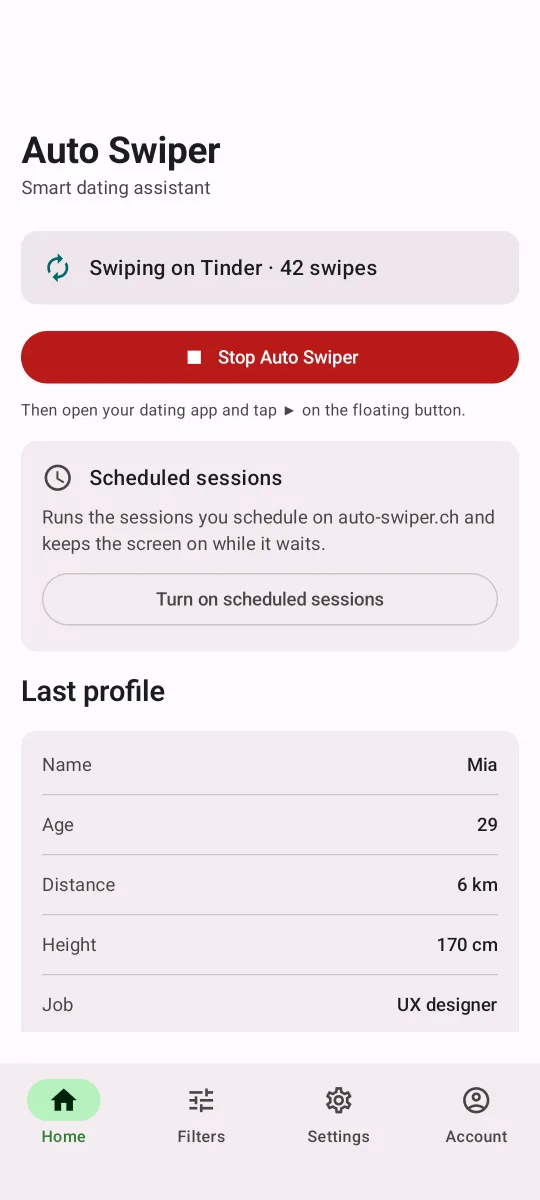
You can also start from the app itself with Start Auto Swiper, then switch to the dating app. A notification shows the live status, so you can check progress from the lock screen.
Step 4: Set your filters
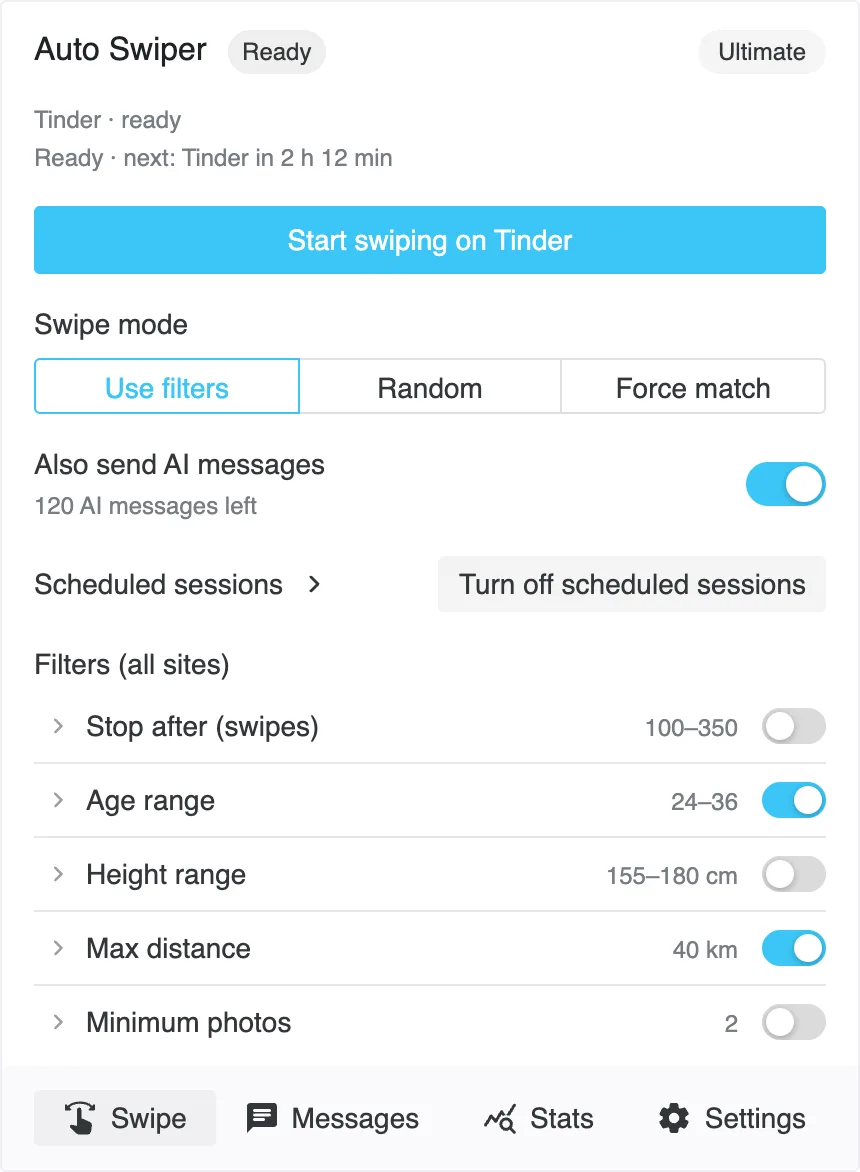
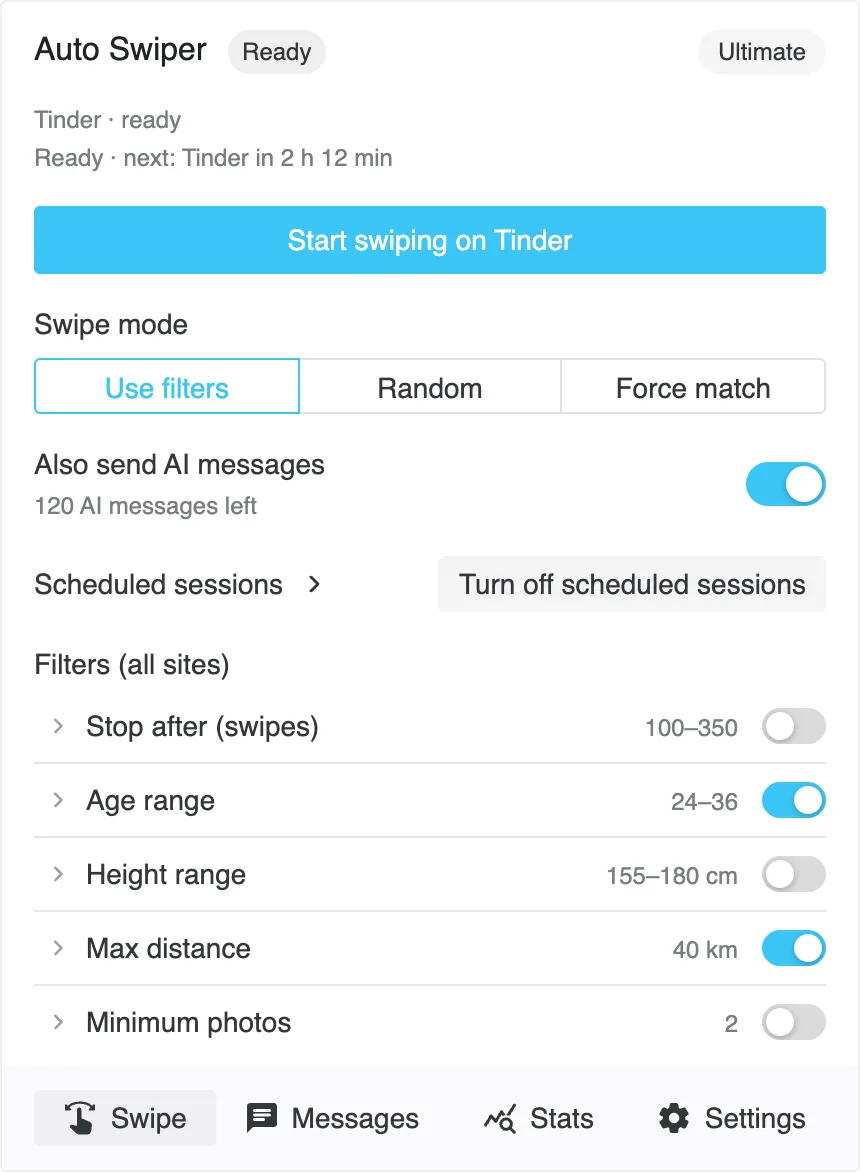
The Filters tab holds everything that decides who gets liked:
- Swipe mode — Use filters, or Random, which passes a share of profiles at random and likes the rest. Random ignores your filters entirely, and the screen says so.
- Age and Distance, with Keep profiles that hide their distance and an Allow up to 2,500 km switch for long-range searching.
- Height, with the same keep profiles that hide their height option.
- Only like profiles with a bio.
- Keywords — the same three lists as the browser extension.
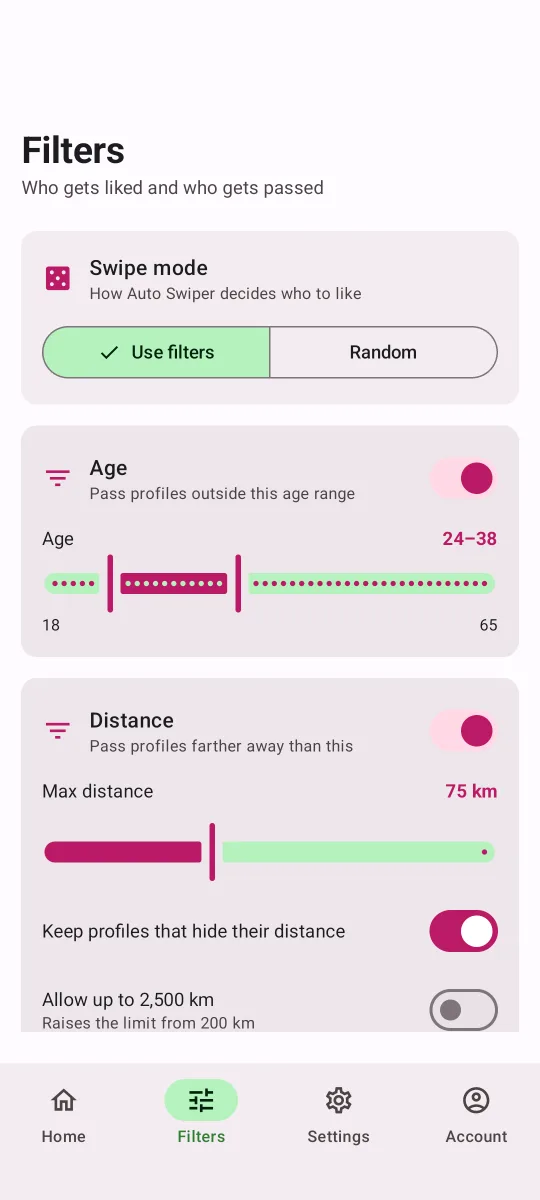
Filters run in a fixed order, and two of them can end the decision early: a skip keyword passes the profile immediately, and an always-like keyword likes it immediately, before age, distance or height get a say. That's deliberate — it lets one strong signal override the rest — but it does mean an over-broad always-like list will like people well outside your age range.
Since 4.0, Only like if profile mentions one of matches when any one of your words appears. It used to require all of them on Android, which almost never happened. If you had several words in that list, expect noticeably more likes now.
Step 5: Hinge, specifically
Hinge works differently from the others: you like a specific photo or prompt rather than the whole profile. Settings → Hinge lets you choose what Auto Swiper should prefer — a photo, the text, a voice prompt, a video — and it falls back to whatever is actually likeable instead of skipping the profile.
Hinge is also the app where things change most often, because it's built in a way that gives us the fewest stable landmarks to work with. If it starts behaving oddly after a Hinge update, tell us — that's usually how we find out.
A few honest limits
- Keep the screen on. Auto Swiper stops the screen timing out while it runs, but it cannot swipe with the phone locked or the screen off. There's no wake lock and no battery-optimization exemption, so if you lock the phone, the session stops.
- Aggressive battery managers can kill it. Some manufacturers shut down background apps hard. If sessions end early for no obvious reason, check your phone's battery settings for Auto Swiper.
- No minimum photos, breaks or force match. Those stay browser-only for now.
Where to go next
- Scheduled sessions — set your schedules on the website and let the phone run them.
- Filters, swipe modes and swipe presets explained — the full list of what each filter does.
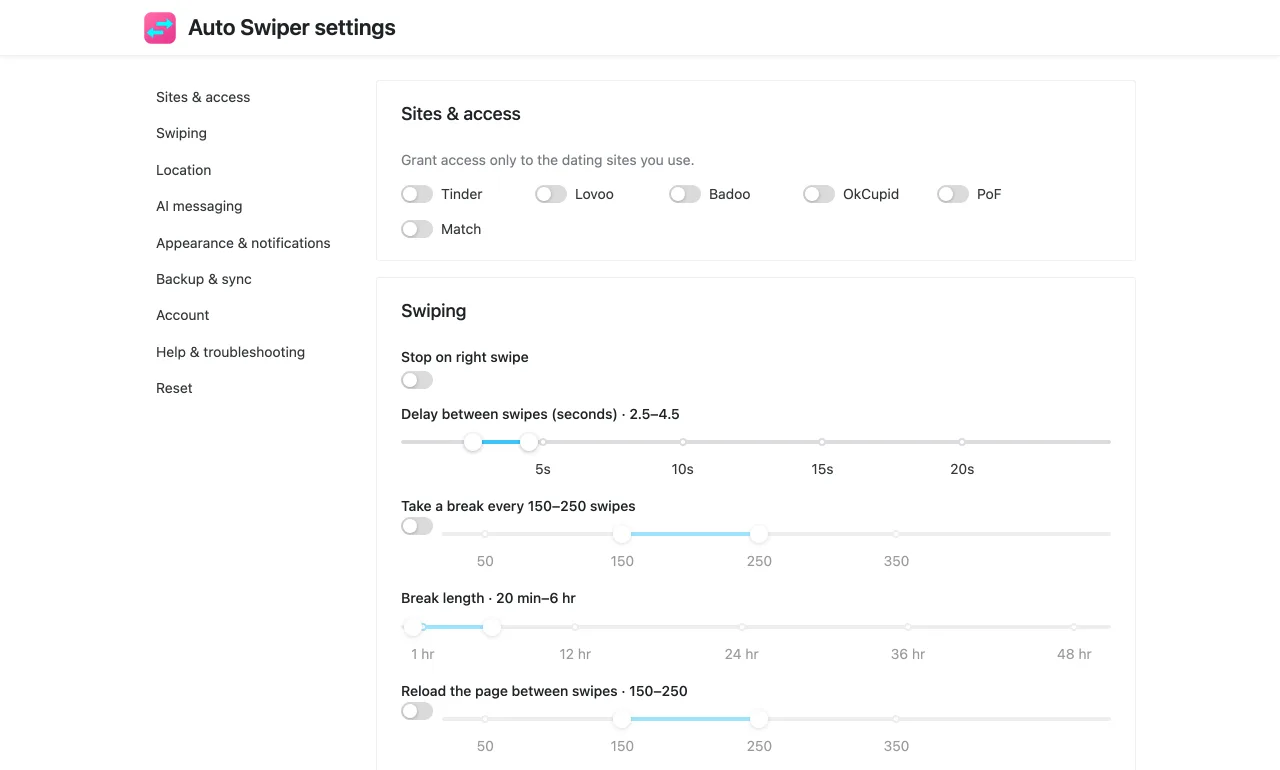
- Swipe like a human — why the delay settings matter.
Questions? support@auto-swiper.ch.